
 Login
Login
- Table of Contents
-
- 08-Security Configuration Guide
- 00-Preface
- 01-AAA configuration
- 02-802.1X configuration
- 03-MAC authentication configuration
- 04-Portal configuration
- 05-Port security configuration
- 06-Password control configuration
- 07-Public key management
- 08-PKI configuration
- 09-IPsec configuration
- 10-SSH configuration
- 11-SSL configuration
- 12-IP source guard configuration
- 13-ARP attack protection configuration
- 14-MFF configuration
- 15-uRPF configuration
- 16-Crypto engine configuration
- 17-FIPS configuration
- 18-ND attack defense configuration
- 19-User profile configuration
- 20-Attack detection and prevention configuration
- 21-MACsec configuration
- Related Documents
-
| Title | Size | Download |
|---|---|---|
| 10-SSH configuration | 481.71 KB |
Contents
Configuring the device as an SSH server
SSH server configuration task list
Specifying the SSH service port
Configuring user lines for SSH login
Configuring a client's host public key
Configuring the SSH management parameters
Specifying a PKI domain for the SSH server
Configuring the device as an Stelnet client
Stelnet client configuration task list
Specifying the source IP address for SSH packets
Establishing a connection to an Stelnet server
Establishing a connection to an Stelnet server based on Suite B
Configuring the device as an SFTP client
SFTP client configuration task list
Specifying the source IP address for SFTP packets
Establishing a connection to an SFTP server
Establishing a connection to an SFTP server based on Suite B
Terminating the connection with the SFTP server
Configuring the device as an SCP client
Establishing a connection to an SCP server
Establishing a connection to an SCP server based on Suite B
Specifying algorithms for SSH2
Specifying key exchange algorithms for SSH2
Specifying public key algorithms for SSH2
Specifying encryption algorithms for SSH2
Specifying MAC algorithms for SSH2
Displaying and maintaining SSH
Stelnet configuration examples
Password authentication enabled Stelnet server configuration example
Publickey authentication enabled Stelnet server configuration example
Password authentication enabled Stelnet client configuration example
Publickey authentication enabled Stelnet client configuration example
Stelnet configuration example based on 128-bit Suite B algorithms
Password authentication enabled SFTP server configuration example
Publickey authentication enabled SFTP client configuration example
SFTP configuration example based on 192-bit Suite B algorithms
SCP file transfer with password authentication
SCP configuration example based on Suite B algorithms
NETCONF over SSH configuration example with password authentication
Configuring SSH
Overview
Secure Shell (SSH) is a network security protocol. Using encryption and authentication, SSH can implement secure remote access and file transfer over an insecure network.
SSH uses the typical client-server model to establish a channel for secure data transfer based on TCP.
SSH includes two versions: SSH1.x and SSH2.0 (hereinafter referred to as SSH1 and SSH2), which are not compatible. SSH2 is better than SSH1 in performance and security.
The device can work as an SSH server or as an SSH client.
·When acting as an SSH server, the device provides services for SSH clients and supports the following SSH versions:
¡ForSecure Telnet(Stelnet),Secure File Transfer Protocol(SFTP), orSecure Copy (SCP)connections, the devicesupports SSH2 and SSH1 in non-FIPS modeandSSH2 in FIPS mode.
¡ForNETCONF-over-SSH connections, the device supports only SSH2 in bothnon-FIPSand FIPSmodes.
·When acting as an SSH client, the device supports only SSH2. It allows users to establish SSH connections with an SSH server.
The device supports the following SSH applications:
·Secure Telnet—Stelnet provides secure and reliable network terminal access services. Through Stelnet, a user can securelylog in to a remote server. Stelnet can protect devices against attacks, such as IP spoofing and plain text password interception. The device can act asanStelnet serveror anStelnet client.
·SFTP—Based on SSH2,ituses SSH connections to provide secure file transfer. The device can act asanSFTP server, allowing a remote user to log in to the SFTP server for secure file management and transfer. The device can also act as an SFTP client, enabling a user to log in from the device to a remote device for secure file transfer.
·SCP—Based on SSH2, itoffers a secure approach to copying files.The device can act asanSCP server, allowing a user to log in to the device for file upload and download. The device can also act as an SCP client, enabling a user to log in from the device to a remotedevicefor secure file transfer.
·NETCONF over SSH—Based on SSH2, it enables users tosecurely log in to the device through SSH andperform NETCONF operations on the device throughtheNETCONF-over-SSH connections. The device can act only as a server inNETCONF-over-SSH connections. For more information about NETCONF, seeNetwork Management and Monitoring Configuration Guide.
How SSHworks
This section uses SSH2 as an example to list the stages to establish an SSH session. For more information about these stages, seeSSH Technology White Paper.
Table 1Stages to establish an SSH session
Stages |
Description |
Connection establishment |
The SSH server listens to connection requests on port 22. After a client initiates a connection request, the server and the client establish a TCP connection. |
Version negotiation |
The two parties determine a version to use. |
Algorithm negotiation |
SSH supports multiple algorithms. Based on the local algorithms, the two parties negotiatethe following algorithms: ·Key exchange algorithm for generating session keys. ·Encryption algorithm for encrypting data. ·Public key algorithm for digital signature and authentication. ·HMAC algorithm for protecting data integrity. |
Key exchange |
The two parties use the DH exchange algorithm to dynamically generate the session keys and session ID. ·Thesession keysare usedfor protecting data transfer. ·The session IDis usedfor identifying the SSH connection. In this stage, the client also authenticates the server. |
Authentication |
The SSH server authenticates the client in response to the client's authentication request. |
Session request |
After passing the authentication, the client sends a session request to the server to request the establishment of a session (or request the Stelnet, SFTP, SCP, or NETCONF service). |
Interaction |
After the server grants the request, the client and the server start to communicate with each other in the session. In this stage, you can paste commands in text format and execute them at the CLI. The text pasted at one time must be no more than 2000 bytes. To execute the commands successfully, H3C recommends that you paste commands that are in the same view. To execute commands of more than 2000 bytes, save the commands in a configuration file, upload the file to the server through SFTP, and use it to restart the server. |
SSHauthenticationmethods
This section describes authentication methods that are supported by the device when it acts as an SSH server.
Password authentication
The SSH server authenticates a client through the AAA mechanism. The password authentication process is as follows:
1.Theclient sends the serveran authenticationrequestthat includes theencryptedusername and password.
2.The server performs the followingoperations:
a.Decrypts therequest to get the username and password in plain text.
b.Verifiesthe username and password locally orthroughremoteAAAauthentication.
c.Informs the client of the authentication result.
If the AAA server requires the user to enter a password for secondary authentication, it sends the SSH server an authentication response carrying a prompt. The prompt is transparently transmitted to the client to notify the user to enter a specific password. When the user enters the correct password, the AAA server examines the password validity. If the password is valid, the SSH server returns an authentication success message to the client.
For more information about AAA, see "Configuring AAA."
NOTE: SSH1 clients do not supportsecondarypassword authentication that is initiated by the AAA server. |
Publickey authentication
The server authenticates a client by verifying the digital signature of the client. The publickey authentication process is as follows:
1.The client sends the server a publickey authentication request that includes the username, public key, and public key algorithm name.
If the digital certificate of the client is required in authentication, the client also encapsulates the digital certificate in the authentication request. The digital certificate carries the public key information of the client.
2.The server verifies the client's public key.
¡If the public key is invalid, the server informs the client of the authentication failure.
¡If the public key is valid, the server requests the digital signature of the client. After receiving the signature, the server uses the public key to verify the signature, and informs the client of the authentication result.
When acting as an SSH server, the device supports using the public key algorithms DSA, ECDSA, and RSA to verify digital signatures.
When acting as an SSH client, the device supports using the public key algorithms DSA, ECDSA, and RSA to generate digital signatures.
For more information about public key configuration, see "Managing public keys."
Password-publickey authentication
The server requires SSH2 clients to pass both password authentication and publickey authentication. However, an SSH1 client only needs to pass either authentication, regardless of the requirement of the server.
Any authentication
The server requires clients to pass password authentication or publickey authentication.
SSH support for Suite B
Suite B contains a set of encryption and authentication algorithms that meet high security requirements.Table 2lists all algorithms in Suite B.
The SSH server and client support using the X.509v3 certificate for identity authentication in compliance with the algorithm, negotiation, and authentication specifications defined in RFC 6239.
Security level |
Key exchange algorithm |
Encryption algorithm and HMAC algorithm |
Public key algorithm |
128-bit |
ecdh-sha2-nistp256 |
AEAD_AES_128_GCM |
x509v3-ecdsa-sha2-nistp256 x509v3-ecdsa-sha2-nistp384 |
192-bit |
ecdh-sha2-nistp384 |
AEAD_AES_256_GCM |
x509v3-ecdsa-sha2-nistp384 |
Both |
ecdh-sha2-nistp256 ecdh-sha2-nistp384 |
AEAD_AES_128_GCM AEAD_AES_256_GCM |
x509v3-ecdsa-sha2-nistp256 x509v3-ecdsa-sha2-nistp384 |
FIPS compliance
The device supports the FIPS mode that complies with NIST FIPS 140-2 requirements. Support for features, commands, and parameters might differ in FIPS mode and non-FIPS mode. For more information about FIPS mode, see "Configuring FIPS."
Configuring the device as an SSH server
You can configure the device as an Stelnet server, SFTP server, or SCP server. Because the configuration procedures are similar, the SSH server collectively refers to the Stelnet server, the SFTP server, and the SCP server unless otherwise specified.
SSH server configuration task list
Tasks at a glance |
Remarks |
(Optional.)Generating local key pairs |
N/A |
(Optional.)Specifying the SSH service port |
N/A |
(Required.)Enabling the Stelnet server |
Required for Stelnet servers. |
(Required.)Enabling the SFTP server |
Required for SFTP servers. |
(Required.)Enabling the SCP server |
Required for SCP servers. |
(Required.)Configuring NETCONF over SSH |
Required for NETCONF-over-SSH servers. |
(Required.)Configuring user lines for SSH login |
Required for Stelnet servers and NETCONF-over-SSH servers. |
(Required.)Configuring a client's host public key |
Required if the authentication method ispublickey,password-publickey,orany. |
Configuring the PKI domain for verifying the client certificate |
See "Configuring PKI." Required if the following conditions exist: ·The authentication method ispublickey. ·The clients send the public keys to the server through digital certificates for validity check. The PKI domain must have the CA certificate to verify the client certificate. |
(Required/optional.)Configuring an SSH user |
Required if the authentication method ispublickey,password-publickey, orany. Optional if the authentication method ispassword. |
(Optional.)Configuring the SSH management parameters |
N/A |
(Optional.)Specifying a PKI domain for the SSH server |
N/A |
Generating local key pairs
The DSA, ECDSA, or RSA key pairs are required for generating the session keys and session ID in the key exchange stage. They can also be used by a client to authenticate the server. When a client authenticates the server, it compares the public key received from the server with the server's public key that the client saved locally. If the keys are consistent, the client uses the locally saved server's public key to decrypt the digital signature received from the server. If the decryption succeeds, the server passes the authentication.
When you execute any one of the SSH commands on the device to trigger the running of the SSH application, the SSH server automatically generates two RSA key pairs. You can also use thepublic-key local createcommand to generate DSA, ECDSA, or RSA key pairs on the device.
Configuration guidelines
When you use thepublic-key local createcommand to generate local key pairs, follow these restrictions and guidelines:
·Local DSA,ECDSA,and RSA key pairs for SSH use default names. You cannot assign names to the key pairs.
·To support SSH clients that use different types of key pairs, generate DSA,ECDSA,and RSA key pairs on the SSH server.
·The SSH server operating in FIPS mode supportsECDSA andRSA key pairs.If bothECDSA and RSAkey pairs exist on the server, the server uses the ECDSA key pair.
·Thepublic-key local create rsacommand generates a server key pair and a host key pair for RSA. In SSH1, the public key in the server key pairis usedto encrypt the session key for secure transmission of thesessionkey.BecauseSSH2 uses the DH algorithm togenerateeachsession key on the SSH server andtheclient, no session key transmission is required.The server key pair is not usedin SSH2.
·Thepublic-key local create dsacommand generates onlya DSAhost key pair.SSH1 does not support the DSA algorithm.
·Thekey modulus lengthmust be less than 2048bitswhen you usethepublic-key local create dsacommandon the SSH server.
·Thepublic-key local create ecdsacommand generates only an ECDSA host key pair. SSH1 does not support the ECDSA algorithm.
Configuration procedure
To generate local key pairs on the SSH server:
Step |
Command |
Remarks |
1.Enter system view. |
system-view |
N/A |
2.Generatelocalkey pairs. |
public-key local create{dsa|ecdsa{secp256r1|secp384r1}|rsa} |
By default, no localkey pairsexist. |
Specifying the SSH service port
|
IMPORTANT: This feature is available in Release 1122 and later. |

The default port of the SSH service is 22. You can specify another port for the SSH service to improve security of SSH connections.
If you modify the SSH port number when the SSH server is enabled, the SSH service is restarted and all SSH connections are terminated after the modification. SSH users must reconnect to the SSH server to access the server.
If you set the SSH port to a well-known port number, the service that uses the well-known port number might fail to start. Well-known port numbers are in the range of 1 to 1024.
To specify the SSH service port:
Step |
Command |
Remarks |
1.Enter system view. |
system-view |
N/A |
2.Specify a port for the SSH service. |
ssh server portport-number |
By default, the SSH service port is 22. |
Enabling the Stelnet server
After you enable the Stelnet server on the device, a client can log in to the device through Stelnet.
To enable the Stelnet server:
Step |
Command |
Remarks |
1.Enter system view. |
system-view |
N/A |
2.Enable the Stelnetserver. |
ssh server enable |
By default, the Stelnet server is disabled. |
Enabling the SFTP server
After you enable the SFTP server on the device, a client can log in to the device through SFTP.
To enable the SFTP server:
Step |
Command |
Remarks |
1.Enter system view. |
system-view |
N/A |
2.Enable the SFTP server. |
sftp server enable |
By default, the SFTP server is disabled. |
Enabling the SCP server
After you enable the SCP server on the device, a client can log in to the device through SCP.
The device that acts as an SCP server does not support SCP connections initiated by SSH1 clients.
To enable the SCP server:
Step |
Command |
Remarks |
1.Enter system view. |
system-view |
N/A |
2.Enable the SCP server. |
By default, the SCP server is disabled. |
Configuring NETCONF over SSH
After you enable NETCONF over SSH on the device, a client can perform NETCONF operations on the device through a NETCONF-over-SSH connection.
When the device acts as a server in the NETCONF-over-SSH connection, connection requests initiated by SSH1 clients are not supported.
For more information about NETCONF over SSH commands, seeNetwork Management and Monitoring Command Reference.
To configure NETCONF over SSH:
Step |
Command |
Remark |
1.Enter system view. |
system-view |
N/A |
2.Enable NETCONF over SSH. |
By default, NETCONF over SSH is disabled. |
|
3.Specify a port to listen for NETCONF-over-SSH connections. |
netconf ssh server portport-number |
By default, port 830 listens for NETCONF-over-SSH connections. |
Configuring user lines for SSH login
Depending on the SSH application, an SSH client can be an Stelnet client, SFTP client, SCP client, or NETCONF-over-SSH client.
Only Stelnet and NETCONF-over-SSH clients require the user line configuration. The user line configuration takes effect on the clients at the next login.
To configure the user lines for Stelnet and NETCONF-over-SSH clients:
Step |
Command |
Remarks |
1.Enter system view. |
system-view |
N/A |
2.Enter VTY user line view. |
linevtynumber[ending-number] |
N/A |
3.Set the login authentication mode toscheme. |
authentication-modescheme |
By default, the authentication mode ispassword. For more information about this command, seeFundamentals Command Reference. |
Configuring a client's host public key
In publickey authentication, the server compares the SSH username and client's host public key that it receives from the client with the locally saved SSH username and the client's host public key. If they are the same, the server checks the digital signature that the client sends. The client generates the digital signature by using the private key that is associated with the client's host public key.
For publickey authentication, password-publickey authentication, or any authentication, you must perform the following tasks:
1.Configure the client's DSA,ECDSA,or RSA host public key on the server.
H3C recommends that you configure no more than 20 SSH client host public keys on an SSH server.
2.Specify theassociatedhost private key on the client to generate the digital signature.
If the device acts as an SSH client, specify the public key algorithm on the client. The algorithm determines the associated host private key for generating the digital signature.
You can enter the content of a client's host public key or import the client's host public key from the public key file. H3C recommends that you import the client's host public key.
Enteringa client'shost public key
Before you enter the client's host public key, you must use thedisplay public-key local publiccommand on the client to obtain the client's host public key.
To enter a client's host public key:
Step |
Command |
Remarks |
1.Enter system view. |
system-view |
N/A |
2.Enter public key view. |
public-key peerkeyname |
N/A |
3.Configure a client's host public key. |
Enter the content of the host public key |
The host public key must be in the DER encoding format without being converted. When you enter the contents for a host public key, you can use spaces and carriage returns between characters. When you save the host public key, spaces and carriage returns are removed automatically. For more information, see "Managing public keys." |
4.Return to system view. |
peer-public-keyend |
N/A |
Importing the client's host public key from the public key file
Before you import the host public key, upload the client's public key file (in binary) to the server, for example, through FTP or TFTP. During the import process, the server automatically converts the host public key in the public key file to a string in PKCS format.
To import a client's host public key from the public key file:
Step |
Command |
1.Enter system view. |
system-view |
2.Importaclient'spublic key from a public key file. |
public-key peerkeynameimport sshkeyfilename |
Configuring an SSH user
Configure an SSH user and a local user depending on the authentication method.
·If the authentication method ispublickey, you must create an SSH user and a local user on theSSHserver. The two users must have the same username, so that the SSH user can be assigned the correct working directory and user role.
·If the authentication method ispassword, you must perform one of the following tasks:
¡For local authentication, configure a local user on the SSH server.
¡For remote authentication, configure an SSH user on a remote authentication server, for example, a RADIUS server.
You do not need to create an SSH user by using thessh usercommand. However, if you want to display all SSH users, including the password-only SSH users, for centralized management, you can use this command to create them. If such an SSH user has been created, make sure you have specified the correct service type and authentication method.
·If the authentication method ispassword-publickeyorany, you must create an SSH user and perform one of the following tasks:
¡For local authentication,configure a local useron the SSH server.
¡For remote authentication, configure an SSH user on aremoteauthentication server, for example, a RADIUS server.
In either case, the local user or the SSH user configured on the remote authentication server must have the same username as the SSH user.
Configuration guidelines
When you configure an SSH user, follow these restrictions and guidelines:
·An SSH server supports up to 1024 SSH users.
·For anSFTPor SCPuser, the workingdirectorydepends on the authentication method.
¡If the authentication method ispassword, the workingdirectoryis authorized by AAA.
¡If the authentication method ispublickeyorpassword-publickey, the working folder isspecifiedby theauthorization-attributecommand in the associated local user view.
·For an SSHuser, theuser role also depends on the authentication method.
¡If the authentication method ispassword, the user role is authorized by the remote AAA server or the local device.
¡If the authentication method ispublickeyorpassword-publickey,the user roleis specified by theauthorization-attributecommandin the associated local user view.
·If you change the authenticationmethodor public key fora logged-inSSH user, the changestake effect at the next login.
·Forall authentication methodsexcept password authentication,you must specifya client's host public keyordigital certificate.
¡Fora clientthatdirectly sends the user's public key information to the server,you mustspecify the client'shostpublic keyon the server.The specified public key must already exist. For more information about public keys, see "Configuring a client's host public key."
¡Fora clientthatsends the user's public key information to the server through a digital certificate,you mustspecify the PKI domainon the server. This PKI domain verifiesthe client certificate. To make sure the authorized SSH userscanpass the authentication, the specified PKI domain must have the correct CA certificate. To specify the PKI domain, use thessh userorssh server pki-domaincommand. For more information about configuring a PKI domain, see "Configuring PKI."
·When the device operates in FIPS mode as an SSH server, the device does not support the authentication method ofanyorpublickey.
For information about configuring local users and remote authentication, see "Configuring AAA."
Configuration procedure
To configure an SSH user, and specify the service type and authentication method:
Step |
Command |
1.Enter system view. |
system-view |
2.Create an SSH user, and specify the service type and authentication method. |
·In non-FIPS mode: ·In FIPS mode: |
Configuring the SSH management parameters
Command |
Remarks |
|
1.Enter system view. |
system-view |
N/A |
2.Enable the SSH server to support SSH1 clients. |
ssh server compatible-ssh1x enable |
By default, the SSH server supports SSH1 clients. This command is not available in FIPS mode. |
3.Set the RSA server key pairupdate interval. |
ssh server rekey-intervalhours |
By default, the device does not update the RSA server key pair. This command takes effect only on SSH1 users. This command is not available in FIPS mode. |
4.Set the SSH user authentication timeouttimer. |
ssh server authentication-timeouttime-out-value |
The default setting is 60 seconds. If a user does not finish the authentication when the timeout timer expires, the connection cannot be established. |
5.Set the maximum number of SSH authentication attempts. |
ssh server authentication-retriestimes |
The default setting is 3. If a user does not finish the authentication when the timeout timer expires, the connection cannot be established. |
6.Specify an ACL to control SSH user connections. |
·Control IPv4 SSH user connections: ·Control IPv6SSH user connections: |
By default, no ACLs are specified and all SSH users can initiate connections to the server. |
7.Set theDSCP value in thepackets that the SSH server sends to the SSHclients. |
·Set theDSCP value inIPv4packets: ·Set theDSCP value inIPv6packets: |
The default setting is 48. The DSCP value of a packet defines the priority of the packet and affects the transmission priority of the packet. A bigger DSCP value represents a higher priority. |
8.Configure the SFTP connection idle timeouttimer. |
sftp server idle-timeouttime-out-value |
The default setting is 10 minutes. When the idle timeout timer expires, the system automatically terminates the connection. |
9.Specify the maximum number of concurrent online SSH users. |
aaa session-limit sshmax-sessions |
The default setting is 32. When the number of online SSH users reaches the upper limit, the system denies new SSH connection requests. Changing the upper limit does not affect online SSH users. |
Specifying a PKI domain for the SSH server
The PKI domain specified for the SSH server has the following functions:
·The SSH server uses the PKI domain to send its certificate to the client in the key exchange stage.
·The SSH server uses the PKI domain to authenticate the client's certificate if no PKI domain is specified for the client authentication by using thessh usercommand.
To specify a PKI domain for the SSH server:
Step |
Command |
Remarks |
1.Enter system view. |
system-view |
N/A |
2.Specify a PKI domain for the SSH server. |
ssh server pki-domaindomain-name |
By default, no PKI domain is specified for the SSH server. |
Configuring the device as an Stelnet client
Stelnet client configuration task list
Tasks at a glance |
(Optional.)Establishing a connection to an Stelnet server based on Suite B |
Specifying the source IP address for SSH packets
H3C recommends that you specify the IP address of a loopback interface as the source interface for SSH packets for the following purposes:
·Ensuring the communication betweenthe Stelnet client and the Stelnet server.
·Improvingthe manageability of Stelnet clients inauthentication service.
To specify the source IP address for SSH packets:
Step |
Command |
Remarks |
1.Enter system view. |
system-view |
N/A |
2.Specifythesource address for SSH packets. |
·Specifythesource IPv4 address forSSH packets: ·Specifythesource IPv6 address for SSH packets: |
By default, the source IP address for SSH packets is not configured. The IPv4 SSH packets use the primary IPv4 address of the output interface specified in the routing entry as their source address. The IPv6 SSH packets automatically select an IPv6 address as their source address in compliance with RFC 3484. |
Establishing a connection to an Stelnet server
When you try to access an Stelnet server, the device must use the server's host public key to authenticate the server. If the server's host public key is not configured on the device, the device will notify you to confirm whether to continue with the access.
·If you choose to continue, the device accesses the server and downloads the server's host public key.
·If you choose to not continue, the connection cannot be established.
In an insecure network, H3C recommends that you configure the server's host public key on the device.
To establish a connection to an Stelnet server:
Task |
Command |
Remarks |
Establish a connection to an Stelnet server. |
·In non-FIPS mode, establish a connection to an IPv4 Stelnet server: |
Available in user view. |
Establishing a connection to an Stelnet server based on Suite B
Task |
Command |
Remarks |
Establish a connection to an Stelnet server based on Suite B. |
·Establish a connection to an IPv4 Stelnet server based on Suite B: ·Establish a connection to an IPv6 Stelnet server based on Suite B: |
Available in user view. The client cannot establish connections to both IPv4 and IPv6 Stelnet servers. |
Configuring the device as an SFTP client
SFTP client configuration task list
Tasks at a glance |
(Optional.)Specifying the source IP address for SFTP packets |
(Required.)Establishing a connection to an SFTP server |
(Optional.)Establishing a connection to an SFTP server based on Suite B |
(Optional.)Working with SFTP directories |
(Optional.)Working with SFTP files |
(Optional.)Displaying help information |
Specifying the source IP address for SFTP packets
H3C recommends that you specify the IP address of a loopback interface as the source interface for SFTP packets for the following purposes:
·Ensuring the communication betweenthe SFTPclient and the SFTPserver.
·Improvingthe manageability of SFTP clients in the authentication service.
To specify the source IP address for SFTP packets:
Step |
Command |
Remarks |
1.Enter system view. |
system-view |
N/A |
2.Specifythesource address for SFTPpackets. |
·Specifythesource IPv4 address for SFTP packets: ·Specifythesource IPv6 address for SFTP packets: |
By default, the source IP address for SFTP packets is not configured. The IPv4 SFTP packets use the primary IPv4 address of the output interface specified in the routing entry as their source IP address. The IPv6 SFTP packets automatically select an IPv6 address as their source address in compliance with RFC 3484. |
Establishing a connection to an SFTP server
When you try to access an SFTP server, the device must use the server's host public key to authenticate the server. If the server's host public key is not configured on the device, the device will notify you to confirm whether to continue with the access.
·If you choose to continue, the device accesses the server and downloads the server's host public key.
·If you choose to not continue, the connection cannot be established.
In an insecure network, H3C recommends that you configure the server's host public key on the device.
After the connection is established, you can directly enter SFTP client view on the server to perform file or directory operations.
To establish a connection to an SFTP server:
Task |
Command |
Remarks |
Establish a connection to an SFTP server. |
·In non-FIPS mode, establish a connection to an IPv4 SFTP server: |
Available in user view. |
Establishing a connection to an SFTP server based on Suite B
After the connection is established, you are in SFTP client view of the server and can perform file or directory operations.
To establish a connection to an SFTP server based on Suite B:
Task |
Command |
Remarks |
Establish a connection to an SFTP server based on Suite B. |
·Establish a connection to an IPv4 SFTP server based on Suite B: ·Establish a connection to an IPv6 SFTP server based on Suite B: |
Available in user view. The client cannot establish connections to both IPv4 and IPv6 SFTP servers. |
Working with SFTP directories
Task |
Command |
Remarks |
Change the working directory on the SFTP server. |
cd[remote-path] |
Available in SFTP client view. |
Return to the upper-level directory. |
cdup |
Available in SFTP client view. |
Display the current working directory on the SFTP server. |
pwd |
Available in SFTP client view. |
Display files under a directory. |
·dir[-a|-l] [remote-path] ·ls[-a|-l] [remote-path] |
Available in SFTP client view. Thedircommand has the same function as thelscommand. |
Change the name of a directory on the SFTP server. |
renameoldname newname |
Available in SFTP client view. |
Create a new directory on the SFTP server. |
mkdirremote-path |
Available in SFTP client view. |
Delete one or more directories from the SFTP server. |
rmdirremote-path |
Available in SFTP client view. |
Working with SFTP files
Task |
Command |
Remarks |
Change the name of a file on the SFTP server. |
renameold-name new-name |
Available in SFTP client view. |
Download a file from the remote server and save it locally. |
getremote-file[local-file] |
Available in SFTP client view. |
Upload a local file to the SFTP server. |
putlocal-file[remote-file] |
Available in SFTP client view. |
Display the files under a directory. |
·dir[-a|-l] [remote-path] ·ls[-a|-l] [remote-path] |
Available in SFTP client view. Thedircommand has the same function as thelscommand. |
Delete one or more directories from the SFTP server. |
·deleteremote-file ·removeremote-file |
Available in SFTP client view. Thedeletecommand has the same function as theremovecommand. |
Displaying help information
Task |
Command |
Remarks |
Display the help information of SFTP client commands. |
·help ·? |
Available in SFTP client view. |
Terminating the connection with the SFTPserver
Task |
Command |
Remarks |
Terminate the connection with the SFTP server and return to user view. |
·bye ·exit ·quit |
Available in SFTP client view. These three commands have the same function. |
Configuring the device as an SCPclient
This section describes how to configure the device as an SCP client to establish a connection with an SCP server and transfer files with the server.
Establishing a connection to an SCP server
When you try to access an SCP server, the device must use the server's host public key to authenticate the server. If the server's host public key is not configured on the device, the device will notify you to confirm whether to continue with the access.
·If you choose to continue, the device accesses the server and downloads the server's host public key.
·If you choose to not continue, the connection cannot be established.
In an insecure network, H3C recommends that you configure the server's host public key on the device.
To transfer files with an SCP server:
Establishing a connection to an SCP server based on Suite B
Task |
Command |
Remarks |
Establish a connection to an SCP server based on Suite B. |
·Establish a connection to an IPv4 SCP server based on Suite B: ·Establish a connection to an IPv6 SCP server based on Suite B: |
Available in user view. The client cannot establish connections to both IPv4 and IPv6 SCP servers. |
Specifying algorithms for SSH2
Perform this task to specify the following types of algorithms that the SSH2 client and server use for algorithm negotiation during the Stelnet, SFTP, or SCP session establishment:
·Key exchange algorithms.
·Public key algorithms.
·Encryption algorithms.
·MAC algorithms.
If you specify algorithms, SSH2 uses only the specified algorithms for algorithm negotiation. The client uses the specified algorithms to initiate the negotiation, and the server uses the matching algorithms to negotiate with the client.
If multiple algorithms of the same type are specified, the algorithm specified earlier has a higher priority during negotiation. The specified SSH2 algorithms do not affect SSH1 sessions.
Specifying key exchange algorithms for SSH2
Step |
Command |
Remarks |
1.Enter system view. |
system-view |
N/A |
2.Specify key exchange algorithms for SSH2. |
·In non-FIPS mode: ·In FIPS mode: |
By default, SSH2 uses the key exchange algorithmsecdh-sha2-nistp256,ecdh-sha2-nistp384,dh-group-exchange-sha1,dh-group14-sha1, anddh-group1-sha1in descending order of priority for algorithm negotiation. |
Specifying public key algorithms for SSH2
Step |
Command |
Remarks |
1.Enter system view. |
system-view |
N/A |
2.Specify public key algorithms for SSH2. |
·In non-FIPS mode: ·In FIPS mode: |
By default, SSH2 uses the public key algorithmsx509v3-ecdsa-sha2-nistp256,x509v3-ecdsa-sha2-nistp384,ecdsa,rsa, anddsain descending order of priority for algorithm negotiation. |
Specifying encryption algorithms for SSH2
Step |
Command |
Remarks |
1.Enter system view. |
system-view |
N/A |
2.Specify encryption algorithms for SSH2. |
·In non-FIPS mode: ·In FIPS mode: |
By default, SSH2 uses the encryption algorithmsaes128-ctr,aes192-ctr,aes256-ctr,aes128-gcm,aes256-gcm,aes128-cbc,3des-cbc,aes256-cbc, anddes-cbcin descending order of priority for algorithm negotiation. |
Specifying MAC algorithms for SSH2
Step |
Command |
Remarks |
1.Enter system view. |
system-view |
N/A |
2.Specify MAC algorithms for SSH2. |
·In non-FIPS mode: ·In FIPS mode: |
By default, SSH2 uses the MAC algorithmssha2-256,sha2-512,sha1,md5,sha1-96, andmd5-96in descending order of priority for algorithm negotiation. |
Displaying and maintaining SSH
Executedisplaycommands in any view.
Task |
Command |
Display the source IP address configured for the SFTP client. |
display sftp client source |
Display the source IP address configured for the Stelnet client. |
display ssh client source |
Display SSH server status or sessions. |
display ssh server{session|status} |
Display SSH user information on the SSH server. |
display ssh user-information[username] |
Display the public keys of the local key pairs. |
display public-key local{dsa|ecdsa|rsa}public[namepublickey-name] |
Display the public keys of the SSH peers. |
display public-key peer[brief|namepublickey-name] |
Stelnet configuration examples
Unless otherwise noted, devices in the configuration examples are in non-FIPS mode.
When you configureStelnet on a device that operates in FIPS mode, follow theserestrictions andguidelines:
·The modulus length of the key pair must be 2048 bits.
·When the device acts as an Stelnet server, only ECDSA and RSA key pairsare supported.If bothECDSA and RSAkey pairs exist on the server, the server uses the ECDSA key pair.
Password authentication enabled Stelnet server configuration example
Network requirements
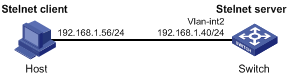
As shown inFigure 1:
·You can log in to Switch through the Stelnet client that runs on the host.
·After login, you are assigned the user role network-admin for configuration management.
·Theswitch acts as the Stelnet server and uses password authentication.
·The username and password of the client are saved on the switch.
Configuration procedure
1.Configure the Stelnet server:
# Generate RSA key pairs.
[Switch] public-key local create rsa
The range of public key size is (512 ~ 2048).
If the key modulus is greater than 512, it will take a few minutes.
Press CTRL+C to abort.
Input the modulus length [default = 1024]:
Generating Keys...
........................++++++
...................++++++
..++++++++
............++++++++
Create the key pair successfully.
# Generate a DSA key pair.
[Switch] public-key local create dsa
The range of public key size is (512 ~ 2048).
If the key modulus is greater than 512, it will take a few minutes.
Press CTRL+C to abort.
Input the modulus length [default = 1024]:
Generating Keys...
.++++++++++++++++++++++++++++++++++++++++++++++++++*
........+......+.....+......................................+
...+.................+..........+...+.
Create the key pair successfully.
# Generate an ECDSA key pair.
[Switch] public-key local create ecdsa secp256r1
Generating Keys...
.
Create the key pair successfully.
# Enable the Stelnet server.
[Switch] ssh server enable
# Assign an IP address to VLAN-interface 2. The Stelnet client uses this IP address as the destination for SSH connection.
[Switch] interface vlan-interface 2
[Switch-Vlan-interface2] ip address 192.168.1.40 255.255.255.0
[Switch-Vlan-interface2] quit
# Set the authentication mode to AAA for the user lines.
[Switch] line vty 0 63
[Switch-line-vty0-63] authentication-mode scheme
[Switch-line-vty0-63] quit
# Create a localdevice managementusernamedclient001.
[Switch] local-user client001 class manage
# Specify the plaintext password asaabbccand the service type assshfor the user.
[Switch-luser-manage-client001] password simple aabbcc
[Switch-luser-manage-client001] service-type ssh
#Assignthenetwork-adminuser role to the user.
[Switch-luser-manage-client001] authorization-attribute user-role network-admin
[Switch-luser-manage-client001] quit
# CreateanSSH usernamedclient001.Specifythe service typeasstelnetand the authentication methodaspasswordfor the user.
[Switch] ssh user client001 service-type stelnet authentication-type password
2.Establish a connection to the Stelnet server:
There are different types of Stelnet client software, such as PuTTYand OpenSSH. This example uses an Stelnet client that runs PuTTY version 0.58.
Toestablish a connection to the Stelnet server:
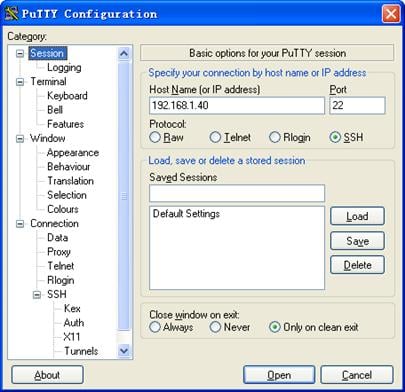
a.Launch PuTTY.exe to enter the interfaceshown inFigure 2.
b.In theHost Name (or IP address)field, enter the IP address192.168.1.40of the Stelnet server.
Figure 2Specifying the host name (or IP address)
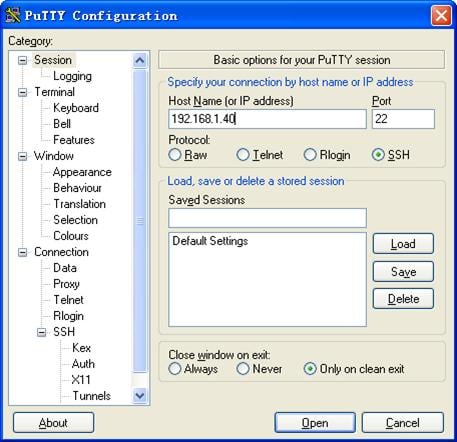
c.ClickOpento connect to the server.
If the connection is successfully established, the system notifies you to enter the username and password. After entering the username (client001in this example) and password (aabbccin this example), you can enter theCLIof the server.
Publickey authentication enabled Stelnet server configuration example
Network requirements
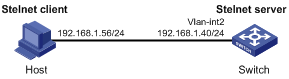
As shown inFigure 3:
·You can log in to the switch through the Stelnet client (SSH2) that runs on the host.
·After login, you are assigned the user role network-admin for configuration management.
·The switch acts as the Stelnet server and uses publickey authentication and the RSA public key algorithm.
Configuration procedure
In the server configuration, the client's host public key is required. Use the client software to generate RSA key pairs on the client before configuring the Stelnet server.
There are different types of Stelnet client software, such as PuTTY and OpenSSH. This example uses an Stelnet client that runs PuTTY version 0.58.
The configuration procedure is as follows:
1.Generate RSA key pairsonthe Stelnet client:
a.Run PuTTYGen.exe on the client, selectSSH-2 RSAand clickGenerate.
Figure 4Generating a key pair on the client
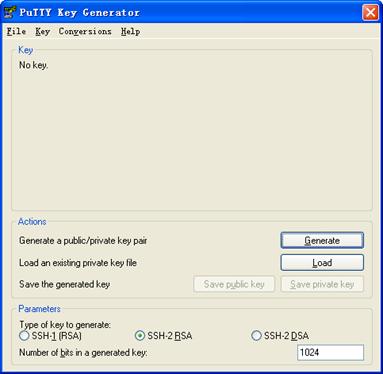
b.Continue moving the mouse during the key generating process, butdo not placethe mouseoverthe green progress bar shown inFigure 5. Otherwise, the progress bar stops moving and the key pair generating progress stops.
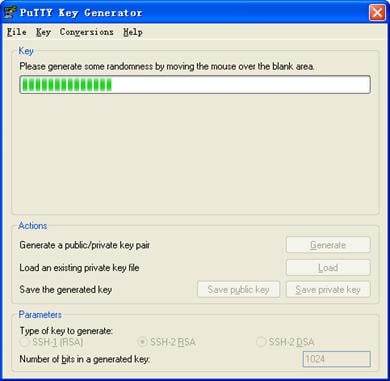
c.After the key pair is generated, clickSave public keyto save the public key.
A file saving window appears.
d.Enter a file name (key.pubin this example), and clickSave.
Figure 6Saving a key pair on the client
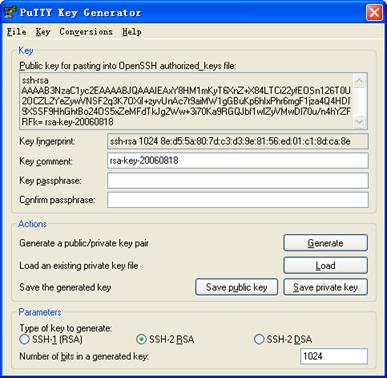
e.On the page as shown inFigure 6,clickSave private keyto save the private key.
A confirmation dialog box appears.
f.ClickYes.
A file saving window appears.
g.Enter a file name (private.ppkin this example), and clickSave.
h.Transmit the public key file to the server through FTP or TFTP. (Details not shown.)
2.Configure the Stelnet server:
# Generate RSA key pairs.
[Switch] public-key local create rsa
The range of public key size is (512 ~ 2048).
If the key modulus is greater than 512, it will take a few minutes.
Press CTRL+C to abort.
Input the modulus length [default = 1024]:
Generating Keys...
........................++++++
...................++++++
..++++++++
............++++++++
Create the key pair successfully.
# Generate a DSA key pair.
[Switch] public-key local create dsa
The range of public key size is (512 ~ 2048).
If the key modulus is greater than 512, it will take a few minutes.
Press CTRL+C to abort.
Input the modulus length [default = 1024]:
Generating Keys...
.++++++++++++++++++++++++++++++++++++++++++++++++++*
........+......+.....+......................................+
...+.................+..........+...+
Create the key pair successfully.
# Generate an ECDSA key pair.
[Switch] public-key local create ecdsa secp256r1
Generating Keys...
.
Create the key pair successfully.
# Enable the Stelnet server.
[Switch] ssh server enable
# Assign an IP address to VLAN-interface 2. The Stelnet client uses this IP address as the destination for SSH connection.
[Switch] interface vlan-interface 2
[Switch-Vlan-interface2] ip address 192.168.1.40 255.255.255.0
[Switch-Vlan-interface2] quit
# Set the authentication mode to AAA for the user lines.
[Switch] line vty 0 63
[Switch-line-vty0-63] authentication-mode scheme
[Switch-line-vty0-63] quit
# Import the client's public key from filekey.puband name itswitchkey.
[Switch] public-key peer switchkey import sshkey key.pub
# CreateanSSH usernamedclient002. Specifythe authentication methodaspublickeyfor the user.Assign the public keyswitchkeyto the user.
[Switch] ssh user client002 service-type stelnet authentication-type publickey assign publickey switchkey
# Create a localdevice managementusernamedclient002. Specifythe service typeassshfor the user.Assignthenetwork-adminuser roleto the user.
[Switch] local-user client002 class manage
[Switch-luser-manage-client002] service-type ssh
[Switch-luser-manage-client002] authorization-attribute user-role network-admin
[Switch-luser-manage-client002] quit
3.Specify the private key file and establish a connection to the Stelnet server:
a.Launch PuTTY.exe on the Stelnet client to enter theinterfaceshown inFigure 7.
b.In theHost Name(or IP address)field, enter the IP address192.168.1.40of the Stelnet server.
Figure 7Specifying the host name (or IP address)
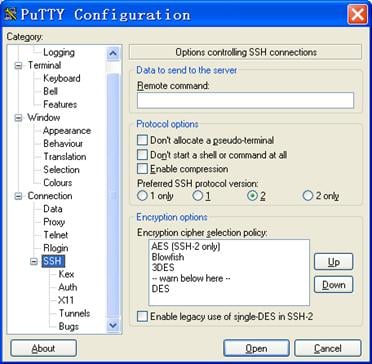
c.SelectConnection>SSHfrom the navigation tree.
Thewindowshown inFigure 8appears.
d.Specify thePreferred SSH protocol versionas2in theProtocol optionsarea.
Figure 8Specifying the preferred SSH version
e.SelectConnection>SSH>Authfrom the navigation tree.
Thewindowshown inFigure 9appears.
f.ClickBrowse…to bring up the file selection window, navigate to the private key file (private.ppkin this example),and clickOK.
Figure 9Specifying the private key file
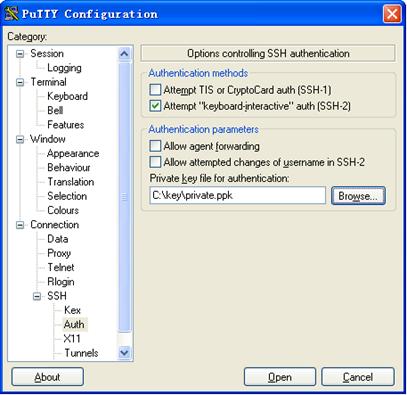
g.ClickOpento connect to the server.
If the connection is successfully established, the system notifies you to enter the username. After entering the username (client002), you can enter theCLIof the server.
Password authentication enabled Stelnet client configuration example
Network requirements
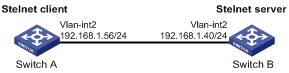
As shown inFigure 10:
·You can log in to Switch B through the Stelnet client that runs on Switch A.
·After login, you are assigned the user role network-admin for configuration management.
·Switch B acts as the Stelnet server and uses password authentication.
·The username and password of the client are saved on Switch B.
Configuration procedure
1.Configure the Stelnet server:
# Generate RSA key pairs.
[SwitchB] public-key local create rsa
The range of public key size is (512 ~ 2048).
If the key modulus is greater than 512, it will take a few minutes.
Press CTRL+C to abort.
Input the modulus length [default = 1024]:
Generating Keys...
........................++++++
...................++++++
..++++++++
............++++++++
Create the key pair successfully.
# Generate a DSA key pair.
[SwitchB] public-key local create dsa
The range of public key size is (512 ~ 2048).
If the key modulus is greater than 512, it will take a few minutes.
Press CTRL+C to abort.
Input the modulus length [default = 1024]:
Generating Keys...
.++++++++++++++++++++++++++++++++++++++++++++++++++*
........+......+.....+......................................+
...+.................+..........+...+
Create the key pair successfully.
# Generate an ECDSA key pair.
[SwitchB] public-key local create ecdsa secp256r1
Generating Keys...
.
Create the key pair successfully.
# Enable the Stelnet server.
[SwitchB] ssh server enable
# Assign an IP address to VLAN-interface 2. The Stelnet client uses the address as the destination address of the SSH connection.
[SwitchB] interface vlan-interface 2
[SwitchB-Vlan-interface2] ip address 192.168.1.40 255.255.255.0
[SwitchB-Vlan-interface2] quit
# Set the authentication mode to AAA for the user lines.
[SwitchB] line vty 0 63
[SwitchB-line-vty0-63] authentication-mode scheme
[SwitchB-line-vty0-63] quit
# Create a localdevice managementusernamedclient001.
[SwitchB] local-user client001 class manage
# Specifythe plaintext password asaabbccand the service type assshfor the user.
[SwitchB-luser-manage-client001] password simple aabbcc
[SwitchB-luser-manage-client001] service-type ssh
#Assignthenetwork-adminuser roleto the user.
[SwitchB-luser-manage-client001] authorization-attribute user-role network-admin
[SwitchB-luser-manage-client001] quit
# CreateanSSH usernamedclient001. Specifythe service typeasstelnetand the authentication methodaspasswordfor the user.
[SwitchB] ssh user client001 service-type stelnet authentication-type password
2.Establish a connection to Stelnet server192.168.1.40:
# Assign an IP address to VLAN-interface 2.
[SwitchA] interface vlan-interface 2
[SwitchA-Vlan-interface2] ip address 192.168.1.56 255.255.255.0
[SwitchA-Vlan-interface2] quit
[SwitchA] quit
Before establishing a connection to the server, you can configure the server's host public key on the client to authenticate the server.
¡To configure the server's host public key on the client, perform the following tasks:
# Use thedisplay public-key local dsa publiccommand on the server to display the server's host public key.(Details not shown.)
# Enter public key view of the client and copy the host public key of the server to the client.
[SwitchA] public-key peer key1
Enter public key view. Return to system view with "peer-public-key end" command.
[SwitchA-pkey-public-key-key1]308201B73082012C06072A8648CE3804013082011F0281810
0D757262C4584C44C211F18BD96E5F0
[SwitchA-pkey-public-key-key1]61C4F0A423F7FE6B6B85B34CEF72CE14A0D3A5222FE08CECE
65BE6C265854889DC1EDBD13EC8B274
[SwitchA-pkey-public-key-key1]DA9F75BA26CCB987723602787E922BA84421F22C3C89CB9B0
6FD60FE01941DDD77FE6B12893DA76E
[SwitchA-pkey-public-key-key1]EBC1D128D97F0678D7722B5341C8506F358214B16A2FAC4B3
68950387811C7DA33021500C773218C
[SwitchA-pkey-public-key-key1]737EC8EE993B4F2DED30F48EDACE915F0281810082269009E
14EC474BAF2932E69D3B1F18517AD95
[SwitchA-pkey-public-key-key1]94184CCDFCEAE96EC4D5EF93133E84B47093C52B20CD35D02
492B3959EC6499625BC4FA5082E22C5
[SwitchA-pkey-public-key-key1]B374E16DD00132CE71B020217091AC717B612391C76C1FB2E
88317C1BD8171D41ECB83E210C03CC9
[SwitchA-pkey-public-key-key1]B32E810561C21621C73D6DAAC028F4B1585DA7F42519718CC
9B09EEF0381840002818000AF995917
[SwitchA-pkey-public-key-key1]E1E570A3F6B1C2411948B3B4FFA256699B3BF871221CC9C5D
F257523777D033BEE77FC378145F2AD
[SwitchA-pkey-public-key-key1]D716D7DB9FCABB4ADBF6FB4FDB0CA25C761B308EF53009F71
01F7C62621216D5A572C379A32AC290
[SwitchA-pkey-public-key-key1]E55B394A217DA38B65B77F0185C8DB8095522D1EF044B465E
8716261214A5A3B493E866991113B2D
[SwitchA-pkey-public-key-key1]485348
[SwitchA-pkey-public-key-key1] peer-public-key end
[SwitchA] quit
# Establish an SSH connection to the server, and specify the host public key of the server.
Username: client001
Press CTRL+C to abort.
Connecting to 192.168.1.40 port 22.
client001@192.168.1.40's password:
Enter a character ~ and a dot to abort.
******************************************************************************
* Copyright (c) 2004-2017 New H3C Technologies Co., Ltd. All rights reserved.*
* Without the owner's prior written consent, *
* no decompiling or reverse-engineering shall be allowed. *
******************************************************************************
After you enter the correct password, you log in toSwitchB successfully.
¡Ifthe client does not havethe server's host public key, the system notifies youto confirmwhether to continue with the accesswhen you access the server. SelectYesto access the server and download the server's host public key.
Username: client001
Press CTRL+C to abort.
Connecting to 192.168.1.40 port 22.
The server is not authenticated. Continue? [Y/N]:y
Do you want to save the server public key? [Y/N]:y
client001@192.168.1.40's password:
Enter a character ~ and a dot to abort.
******************************************************************************
* Copyright (c) 2004-2017 New H3C Technologies Co., Ltd. All rights reserved.*
* Without the owner's prior written consent, *
* no decompiling or reverse-engineering shall be allowed. *
******************************************************************************
After you enter the correct password, you canlog in to Switch Bsuccessfully. The server's host public keyissaved on the client.At the next connection attempt, the system will not notify you to authenticate the server.
Publickey authentication enabled Stelnet client configuration example
Network requirements
As shown inFigure 11:
·You can log in to Switch B through the Stelnet client that runs on Switch A.
·After login, you are assigned the user role network-admin for configuration management.
·Switch B acts as the Stelnet server and uses publickey authentication and the DSA public key algorithm.
Configuration procedure
In the server configuration, the client public key is required. Use the client software to generate a DSA key pair on the client before configuring the Stelnet server.
1.Configure the Stelnet client:
# Assign an IP address to VLAN-interface 2.
[SwitchA] interface vlan-interface 2
[SwitchA-Vlan-interface2] ip address 192.168.1.56 255.255.255.0
[SwitchA-Vlan-interface2] quit
# Generate a DSA key pair.
[SwitchA] public-key local create dsa
The range of public key size is (512 ~ 2048).
If the key modulus is greater than 512, it will take a few minutes.
Press CTRL+C to abort.
Input the modulus length [default = 1024]:
Generating Keys...
.++++++++++++++++++++++++++++++++++++++++++++++++++*
........+......+.....+......................................+
...+.................+..........+...+
Create the key pair successfully.
# Export the DSA host public key to filekey.pub.
[SwitchA] public-key local export dsa ssh2 key.pub
[SwitchA] quit
#Transmit the public key filekey.pubto the server through FTP or TFTP. (Details not shown.)
2.Configure the Stelnet server:
# Generate RSA key pairs.
[SwitchB] public-key local create rsa
The range of public key size is (512 ~ 2048)
If the key modulus is greater than 512, it will take a few minutes.
Press CTRL+C to abort.
Input the modulus length [default = 1024]:
Generating Keys...
........................++++++
...................++++++
..++++++++
............++++++++
Create the key pair successfully.
# Generate a DSA key pair.
[SwitchB] public-key local create dsa
The range of public key size is (512 ~ 2048).
If the key modulus is greater than 512, it will take a few minutes.
Press CTRL+C to abort.
Input the modulus length [default = 1024]:
Generating Keys...
.++++++++++++++++++++++++++++++++++++++++++++++++++*
........+......+.....+......................................+
...+.................+..........+...+
Create the key pair successfully.
# Generate an ECDSA key pair.
[SwitchB] public-key local create ecdsa secp256r1
Generating Keys...
.
Create the key pair successfully.
# Enable Stelnet server.
[SwitchB] ssh server enable
# Assign an IP address to VLAN-interface 2. The Stelnet client uses the address as the destination address of the SSH connection.
[SwitchB] interface vlan-interface 2
[SwitchB-Vlan-interface2] ip address 192.168.1.40 255.255.255.0
[SwitchB-Vlan-interface2] quit
# Set the authentication mode to AAA for the user lines.
[SwitchB] line vty 0 63
[SwitchB-line-vty0-63] authentication-mode scheme
[SwitchB-line-vty0-63] quit
# Import the peer public key from the filekey.pub, and name itswitchkey.
[SwitchB] public-key peer switchkey import sshkey key.pub
# CreateanSSH usernamedclient002.Specify the authentication methodaspublickeyfor the user. Assign the public keyswitchkeyto the user.
[SwitchB] ssh user client002 service-type stelnet authentication-type publickey assign publickey switchkey
# Create a localdevice managementusernamedclient002.Specify the service typeassshfor the user.Assign thenetwork-adminuser roleto the user.
[SwitchB] local-user client002 class manage
[SwitchB-luser-manage-client002] service-type ssh
[SwitchB-luser-manage-client002] authorization-attribute user-role network-admin
[SwitchB-luser-manage-client002] quit
3.Establish an SSH connection to Stelnet server192.168.1.40.
Username: client002
Press CTRL+C to abort.
Connecting to 192.168.1.40 port 22.
The server is not authenticated. Continue? [Y/N]:y
Do you want to save the server public key? [Y/N]:n
client002@192.168.1.40's password:
Enter a character ~ and a dot to abort.
******************************************************************************
* Copyright (c) 2004-2017 New H3C Technologies Co., Ltd. All rights reserved.*
* Without the owner's prior written consent, *
* no decompiling or reverse-engineering shall be allowed. *
******************************************************************************
SelectYesto access the server and download the server's host public key.At the next connection attempt, theclientauthenticatesthe serverby usingthesavedserver's host public key on the client.
Stelnet configuration example based on 128-bit Suite B algorithms
Network requirements
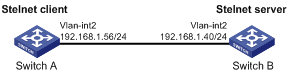
As shown inFigure 12:
·Switch A acts as an Stelnet client (SSH2).
·Switch B acts as the Stelnet server (SSH2), and it uses publickey authentication.
·Switch B uses the following algorithms for the algorithm negotiation with the Stelnet client:
¡Key exchange algorithmecdh-sha2-nistp256.
¡Encryption algorithmaes128-gcm.
¡Public key algorithmsx509v3-ecdsa-sha2-nistp256andx509v3-ecdsa-sha2-nistp384.
Configure Switch A to establish an Stelnet connection to Switch B based on the 128-bit Suite B algorithms. After the connection is established, you can log in to Switch B to configure and manage Switch B.
Configuration procedure
1.Generate the client's certificate and the server's certificate. (Details not shown.)
You must first configure the certificates of the server and the client because they are required for identity authentication between the two parties.
In this example, the server's certificate file isssh-server-ecdsa256.p12and the client's certificate file isssh-client-ecdsa256.p12.
2.Configure the Stelnet client:
NOTE: You can modify the pkix version of the client software OpenSSH to support Suite B. This example uses an H3C switch as an Stelnet client. |
# Upload the server's certificate filessh-server-ecdsa256.p12and the client's certificate filessh-client-ecdsa256.p12to the Stelnet client through FTP or TFTP. (Details not shown.)
# Create a PKI domain namedserver256for verifying the server's certificate and enter its view.
[SwitchA] pki domain server256
# Disable CRL checking.
[SwitchA-pki-domain-server256] undo crl check enable
[SwitchA-pki-domain-server256] quit
# Import the local certificate filessh-server-ecdsa256.p12to the PKI domainserver256.
[SwitchA] pki import domain server256 p12 local filename ssh-server-ecdsa256.p12
The system is going to save the key pair. You must specify a key pair name, which is a case-insensitive string of 1 to 64 characters. Valid characters include a to z, A to Z, 0 to 9, and hyphens (-).
Please enter the key pair name[default name: server256]:
# Display information about local certificates in the PKI domainserver256.
[SwitchA] display pki certificate domain server256 local
Certificate:
Data:
Version: 3 (0x2)
Serial Number: 3 (0x3)
Signature Algorithm: ecdsa-with-SHA256
Issuer: C=CN, ST=Beijing, L=Beijing, O=H3C, OU=Software, CN=SuiteB CA
Validity
Not Before: Aug 21 08:39:51 2015 GMT
Not After : Aug 20 08:39:51 2016 GMT
Subject: C=CN, ST=Beijing, O=H3C, OU=Software, CN=SSH Server secp256
Subject Public Key Info:
Public Key Algorithm: id-ecPublicKey
Public-Key: (256 bit)
pub:
04:a2:b4:b4:66:1e:3b:d5:50:50:0e:55:19:8d:52:
6d:47:8c:3d:3d:96:75:88:2f:9a:ba:a2:a7:f9:ef:
0a:a9:20:b7:b6:6a:90:0e:f8:c6:de:15:a2:23:81:
3c:9e:a2:b7:83:87:b9:ad:28:c8:2a:5e:58:11:8e:
c7:61:4a:52:51
ASN1 OID: prime256v1
NIST CURVE: P-256
X509v3 extensions:
X509v3 Basic Constraints:
CA:FALSE
Netscape Comment:
OpenSSL Generated Certificate
X509v3 Subject Key Identifier:
08:C1:F1:AA:97:45:19:6A:DA:4A:F2:87:A1:1A:E8:30:BD:31:30:D7
X509v3 Authority Key Identifier:
keyid:5A:BE:85:49:16:E5:EB:33:80:25:EB:D8:91:50:B4:E6:3E:4F:B8:22
Signature Algorithm: ecdsa-with-SHA256
30:65:02:31:00:a9:16:e9:c1:76:f0:32:fc:4b:f9:8f:b6:7f:
31:a0:9f:de:a7:cc:33:29:27:2c:71:2e:f9:0d:74:cb:25:c9:
00:d2:52:18:7f:58:3f:cc:7e:8b:d3:42:65:00:cb:63:f8:02:
30:01:a2:f6:a1:51:04:1c:61:78:f6:6b:7e:f9:f9:42:8d:7c:
a7:bb:47:7c:2a:85:67:0d:81:12:0b:02:98:bc:06:1f:c1:3c:
9b:c2:1b:4c:44:38:5a:14:b2:48:63:02:2b
#Create a PKI domain namedclient256for the client's certificateand enter its view.
[SwitchA] pki domain client256
# Disable CRL checking.
[SwitchA-pki-domain-client256] undo crl check enable
[SwitchA-pki-domain-client256] quit
# Import the local certificate filessh-client-ecdsa256.p12to the PKI domainclient256.
[SwitchA] pki import domain client256 p12 local filename ssh-client-ecdsa256.p12
The system is going to save the key pair. You must specify a key pair name, which is a case-insensitive string of 1 to 64 characters. Valid characters include a to z, A to Z, 0 to 9, and hyphens (-).
Please enter the key pair name[default name: client256]:
# Display information about local certificates in the PKI domainclient256.
[SwitchA] display pki certificate domain client256 local
Certificate:
Data:
Version: 3 (0x2)
Serial Number: 4 (0x4)
Signature Algorithm: ecdsa-with-SHA256
Issuer: C=CN, ST=Beijing, L=Beijing, O=H3C, OU=Software, CN=SuiteB CA
Validity
Not Before: Aug 21 08:41:09 2015 GMT
Not After : Aug 20 08:41:09 2016 GMT
Subject: C=CN, ST=Beijing, O=H3C, OU=Software, CN=SSH Client secp256
Subject Public Key Info:
Public Key Algorithm: id-ecPublicKey
Public-Key: (256 bit)
pub:
04:da:e2:26:45:87:7a:63:20:e7:ca:7f:82:19:f5:
96:88:3e:25:46:f8:2f:9a:4c:70:61:35:db:e4:39:
b8:38:c4:60:4a:65:28:49:14:32:3c:cc:6d:cd:34:
29:83:84:74:a7:2d:0e:75:1c:c2:52:58:1e:22:16:
12:d0:b4:8a:92
ASN1 OID: prime256v1
NIST CURVE: P-256
X509v3 extensions:
X509v3 Basic Constraints:
CA:FALSE
Netscape Comment:
OpenSSL Generated Certificate
X509v3 Subject Key Identifier:
1A:61:60:4D:76:40:B8:BA:5D:A1:3C:60:BC:57:98:35:20:79:80:FC
X509v3 Authority Key Identifier:
keyid:5A:BE:85:49:16:E5:EB:33:80:25:EB:D8:91:50:B4:E6:3E:4F:B8:22
Signature Algorithm: ecdsa-with-SHA256
30:66:02:31:00:9a:6d:fd:7d:ab:ae:54:9a:81:71:e6:bb:ad:
5a:2e:dc:1d:b3:8a:bf:ce:ee:71:4e:8f:d9:93:7f:a3:48:a1:
5c:17:cb:22:fa:8f:b3:e5:76:89:06:9f:96:47:dc:34:87:02:
31:00:e3:af:2a:8f:d6:8d:1f:3a:2b:ae:2f:97:b3:52:63:b6:
18:67:70:2c:93:2a:41:c0:e7:fa:93:20:09:4d:f4:bf:d0:11:
66:0f:48:56:01:1e:c3:be:37:4e:49:19:cf:c6
# Assign an IP address to VLAN-interface 2.
[SwitchA] interface vlan-interface 2
[SwitchA-Vlan-interface2] ip address 192.168.1.56 255.255.255.0
[SwitchA-Vlan-interface2] quit
3.Configure the Stelnet server:
# Upload the server's certificate filessh-server-ecdsa256.p12and the client's certificate filessh-client-ecdsa256.p12to the Stelnet server through FTP or TFTP. (Details not shown.)
#Create a PKI domain namedclient256for verifying the client's certificate and import the file of the client's certificate to this domain. (Details not shown.)
#Create a PKI domain namedserver256for the server's certificate and import the file of the server's certificate to this domain. (Details not shown.)
# Specify Suite B algorithms for algorithm negotiation.
[SwitchB] ssh2 algorithm key-exchange ecdh-sha2-nistp256
[SwitchB] ssh2 algorithm cipher aes128-gcm
[SwitchB] ssh2 algorithm public-key x509v3-ecdsa-sha2-nistp256 x509v3-ecdsa-sha2-nistp384
# Specifyserver256as the PKI domain of the server's certificate.
[SwitchB] ssh server pki-domain server256
# Enable the Stelnet server.
[SwitchB] ssh server enable
# Assign an IP address to VLAN-interface 2.
[SwitchB] interface vlan-interface 2
[SwitchB-Vlan-interface2] ip address 192.168.1.40 255.255.255.0
[SwitchB-Vlan-interface2] quit
# Set the authentication mode to AAA for user lines.
[SwitchB] line vty 0 63
[SwitchB-line-vty0-63] authentication-mode scheme
[SwitchB-line-vty0-63] quit
# Create a local device management usernamedclient001. Authorize the user to use theSSHservice and assign thenetwork-adminuser role to the user.
[SwitchB] local-user client001 class manage
[SwitchB-luser-manage-client001] service-type ssh
[SwitchB-luser-manage-client001] authorization-attribute user-role network-admin
[SwitchB-luser-manage-client001] quit
# Create an SSH usernamedclient001. Specify the authentication methodpublickeyfor the user and specifyclient256as the PKI domain for verifying the client's certificate.
[Switch] ssh user client001 service-type stelnet authentication-type publickey assign pki-domain client256
4.Establish an SSH connection to Stelnet server192.168.1.40based on the 128-bit Suite B algorithms.
Username: client001
Press CTRL+C to abort.
Connecting to 192.168.1.40 port 22.
Enter a character ~ and a dot to abort.
******************************************************************************
* Copyright (c) 2004-2017 New H3C Technologies Co., Ltd. All rights reserved.*
* Without the owner's prior written consent, *
* no decompiling or reverse-engineering shall be allowed. *
******************************************************************************
SFTP configuration examples
Unless otherwise noted, devices in the configuration examples are in non-FIPS mode.
When you configureSFTP on a device that operates in FIPS mode, follow theserestrictions andguidelines:
·The modulus length of the key pair must be 2048 bits.
·When the device acts as an SFTP server, only ECDSA and RSA key pairsare supported.If bothECDSA and RSAkey pairs exist on the server, the server uses the ECDSA key pair.
Password authentication enabled SFTP server configuration example
Network requirements
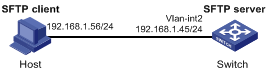
As shown inFigure 13:
·You can log in to the switch through the SFTP client that runs on the host.
·After login, you are assigned the user role network-admin to execute file management and transfer operations.
·The switch acts as the SFTP server and uses password authentication.
·The username and password of the client are saved on the switch.
Configuration procedure
1.Configure the SFTP server:
# Generate RSA key pairs.
[Switch] public-key local create rsa
The range of public key size is (512 ~ 2048).
If the key modulus is greater than 512, it will take a few minutes.
Press CTRL+C to abort.
Input the modulus length [default = 1024]:
Generating Keys...
........................++++++
...................++++++
..++++++++
............++++++++
Create the key pair successfully.
# Generate a DSA key pair.
[Switch] public-key local create dsa
The range of public key size is (512 ~ 2048).
If the key modulus is greater than 512, it will take a few minutes.
Press CTRL+C to abort.
Input the modulus length [default = 1024]:
Generating Keys...
.++++++++++++++++++++++++++++++++++++++++++++++++++*
........+......+.....+......................................+
...+.................+..........+...+
Create the key pair successfully.
# Generate an ECDSA key pair.
[Switch] public-key local create ecdsa secp256r1
Generating Keys...
.
Create the key pair successfully.
# Enable the SFTP server.
[Switch] sftp server enable
# Assign an IP address to VLAN-interface 2. The SFTP client uses the address as the destination for SSH connection.
[Switch] interface vlan-interface 2
[Switch-Vlan-interface2] ip address 192.168.1.45 255.255.255.0
[Switch-Vlan-interface2] quit
# Create a localdevice managementusernamedclient002.Specify theplaintextpasswordasaabbccand theservice typeassshfor the user. Assignthenetwork-adminuser roleand the working directoryflash:/to the user.
[Switch] local-user client002 class manage
[Switch-luser-manage-client002] password simple aabbcc
[Switch-luser-manage-client002] service-type ssh
[Switch-luser-manage-client002] authorization-attribute user-role network-admin work-directory flash:/
[Switch-luser-manage-client002] quit
# CreateanSSH usernamedclient002.Specify the authentication methodaspasswordandtheservice typeassftpfor the user.
[Switch] ssh user client002 service-type sftp authentication-type password
2.Establish a connection between the SFTP client and the SFTP server:
The device supports different types of SFTP client software. This example uses an SFTP client that runs PSFTP of PuTTy version 0.58.
NOTE: PSFTP supports only password authentication. |
To establish a connection to the SFTP server:
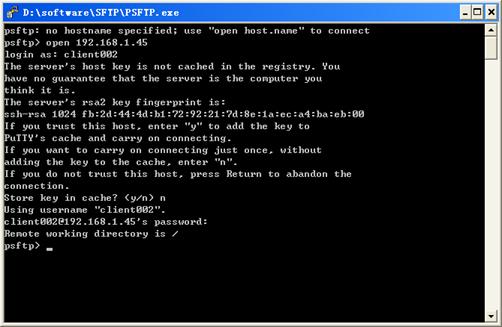
a.Run thepsftp.exeto launch the client interface shown inFigure 14, and enter the following command:
open 192.168.1.45
b.Enter usernameclient002and passwordaabbccas prompted to log in to the SFTP server.
Figure 14SFTP client interface
Publickey authentication enabled SFTP client configuration example
Network requirements
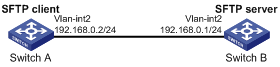
As shown inFigure 15:
·You can log in to Switch B through the SFTP client that runs on Switch A.
·After login, you are assigned the user role network-admin to execute file management and transfer operations.
·Switch B acts as the SFTP server and uses publickey authentication and the RSA public key algorithm.
Configuration procedure
In the server configuration, the client's host public key is required. Generate RSA key pairs on the client before configuring the SFTP server.
1.Configure the SFTP client:
# Assign an IP address to VLAN-interface 2.
[SwitchA] interface vlan-interface 2
[SwitchA-Vlan-interface2] ip address 192.168.0.2 255.255.255.0
[SwitchA-Vlan-interface2] quit
# Generate RSA key pairs.
[SwitchA] public-key local create rsa
The range of public key size is (512 ~ 2048).
If the key modulus is greater than 512, it will take a few minutes.
Press CTRL+C to abort.
Input the modulus length [default = 1024]:
Generating Keys...
........................++++++
...................++++++
..++++++++
............++++++++
Create the key pair successfully.
# Export the host public key to the filepubkey.
[SwitchA] public-key local export rsa ssh2 pubkey
[SwitchA] quit
# Transmit the public key filepubkeyto the server through FTP or TFTP. (Details not shown.)
2.Configure the SFTP server:
# Generate RSA key pairs.
[SwitchB] public-key local create rsa
The range of public key size is (512 ~ 2048).
If the key modulus is greater than 512, it will take a few minutes.
Press CTRL+C to abort.
Input the modulus length [default = 1024]:
Generating Keys...
........................++++++
...................++++++
..++++++++
............++++++++
Create the key pair successfully.
# Generate a DSA key pair.
[SwitchB] public-key local create dsa
The range of public key size is (512 ~ 2048).
If the key modulus is greater than 512, it will take a few minutes.
Press CTRL+C to abort.
Input the modulus length [default = 1024]:
Generating Keys...
.++++++++++++++++++++++++++++++++++++++++++++++++++*
........+......+.....+......................................+
...+.................+..........+...+
Create the key pair successfully.
# Generate an ECDSA key pair.
[SwitchB] public-key local create ecdsa secp256r1
Generating Keys...
.
Create the key pair successfully.
# Enable the SFTP server.
[SwitchB] sftp server enable
# Assign an IP address to VLAN-interface 2. The SFTP client uses the address as the destination for SSH connection.
[SwitchB] interface vlan-interface 2
[SwitchB-Vlan-interface2] ip address 192.168.0.1 255.255.255.0
[SwitchB-Vlan-interface2] quit
# Import the peer public key from the filepubkey, and name itswitchkey.
[SwitchB] public-key peer switchkey import sshkey pubkey
# CreateanSSH usernamedclient001.Specifythe service typeassftpand theauthentication methodaspublickeyfor the user. Assign thepublic keyswitchkeyto the user.
[SwitchB] ssh user client001 service-type sftp authentication-type publickey assign publickey switchkey
# Create a localdevice managementusernamedclient001.
[SwitchB] local-user client001 class manage
#Specifythe service typeassshforthe user.
[SwitchB-luser-manage-client001] service-type ssh
#Assignthenetwork-adminuser roleand the working directoryflash:/to the user.
[SwitchB-luser-manage-client001] authorization-attribute user-role network-admin work-directory flash:/
[SwitchB-luser-manage-client001] quit
3.Establish a connection to the SFTP server:
# Establish a connection to the SFTP server and enter SFTP client view.
Username: client001
Press CTRL+C to abort.
Connecting to 192.168.0.1 port 22.
The server is not authenticated. Continue? [Y/N]:y
Do you want to save the server public key? [Y/N]:n
sftp>
# Display files under the current directory of the server, delete the filez, andverifythe result.
sftp> dir -l
-rwxrwxrwx 1 noone nogroup 1759 Aug 23 06:52 config.cfg
-rwxrwxrwx 1 noone nogroup 225 Aug 24 08:01 pubkey2
-rwxrwxrwx 1 noone nogroup 283 Aug 24 07:39 pubkey
drwxrwxrwx 1 noone nogroup 0 Sep 01 06:22 new
-rwxrwxrwx 1 noone nogroup 225 Sep 01 06:55 pub
-rwxrwxrwx 1 noone nogroup 0 Sep 01 08:00 z
sftp> delete z
Removing /z
sftp> dir -l
-rwxrwxrwx 1 noone nogroup 1759 Aug 23 06:52 config.cfg
-rwxrwxrwx 1 noone nogroup 225 Aug 24 08:01 pubkey2
-rwxrwxrwx 1 noone nogroup 283 Aug 24 07:39 pubkey
drwxrwxrwx 1 noone nogroup 0 Sep 01 06:22 new
-rwxrwxrwx 1 noone nogroup 225 Sep 01 06:55 pub
# Add a directorynew1andverifythe result.
sftp> mkdir new1
sftp> dir -l
-rwxrwxrwx 1 noone nogroup 1759 Aug 23 06:52 config.cfg
-rwxrwxrwx 1 noone nogroup 225 Aug 24 08:01 pubkey2
-rwxrwxrwx 1 noone nogroup 283 Aug 24 07:39 pubkey
drwxrwxrwx 1 noone nogroup 0 Sep 01 06:22 new
-rwxrwxrwx 1 noone nogroup 225 Sep 01 06:55 pub
drwxrwxrwx 1 noone nogroup 0 Sep 02 06:30 new1
# Rename directorynew1tonew2andverifythe result.
sftp> rename new1 new2
sftp> dir -l
-rwxrwxrwx 1 noone nogroup 1759 Aug 23 06:52 config.cfg
-rwxrwxrwx 1 noone nogroup 225 Aug 24 08:01 pubkey2
-rwxrwxrwx 1 noone nogroup 283 Aug 24 07:39 pubkey
drwxrwxrwx 1 noone nogroup 0 Sep 01 06:22 new
-rwxrwxrwx 1 noone nogroup 225 Sep 01 06:55 pub
drwxrwxrwx 1 noone nogroup 0 Sep 02 06:33 new2
# Download the filepubkey2from the server and save it as a local filepublic.
sftp> get pubkey2 public
Fetching / pubkey2 to public
/pubkey2 100% 225 1.4KB/s 00:00
# Upload the local fileputo the server, save it aspuk, andverifythe result.
sftp> put pu puk
Uploading pu to / puk
sftp> dir -l
-rwxrwxrwx 1 noone nogroup 1759 Aug 23 06:52 config.cfg
-rwxrwxrwx 1 noone nogroup 225 Aug 24 08:01 pubkey2
-rwxrwxrwx 1 noone nogroup 283 Aug 24 07:39 pubkey
drwxrwxrwx 1 noone nogroup 0 Sep 01 06:22 new
drwxrwxrwx 1 noone nogroup 0 Sep 02 06:33 new2
-rwxrwxrwx 1 noone nogroup 283 Sep 02 06:35 pub
-rwxrwxrwx 1 noone nogroup 283 Sep 02 06:36 puk
sftp>
# Exit SFTP client view.
sftp> quit
SFTP configuration example based on 192-bit Suite B algorithms
Network requirements
As shown inFigure 16:
·Switch A acts as an SFTP client (SSH2).
·Switch B acts as the SFTP server (SSH2), and it uses publickey authentication.
·Switch B uses the following algorithms for the algorithm negotiation with the SFTP client:
¡Key exchange algorithmecdh-sha2-nistp384.
¡Encryption algorithmaes256-gcm.
¡Public key algorithmx509v3-ecdsa-sha2-nistp384.
Configure Switch A to establish an SFTP connection to Switch B based on the 192-bit Suite B algorithms. After the connection is established, you can log in to Switch B to manage and transfer files.
Configuration procedure
1.Generate the client's certificate and the server's certificate. (Details not shown.)
You must first configure the certificates of the server and the client because they are required for identity authentication between the two parties.
In this example, the server's certificate file isssh-server-ecdsa384.p12and the client's certificate file isssh-client-ecdsa384.p12.
2.Configure the SFTP client:
NOTE: You can modify the pkix version of the client software OpenSSH to support Suite B. This example uses an H3C switch as an SFTP client. |
# Upload the server's certificate filessh-server-ecdsa384.p12and the client's certificate filessh-client-ecdsa384.p12to the SFTP client through FTP or TFTP. (Details not shown.)
#Create a PKI domain namedserver384for verifying the server's certificateand enter its view.
[SwitchA] pki domain server384
# Disable CRL checking.
[SwitchA-pki-domain-server384] undo crl check enable
[SwitchA-pki-domain-server384] quit
# Import the local certificate filessh-server-ecdsa384.p12to the PKI domainserver384.
[SwitchA] pki import domain server384 p12 local filename ssh-server-ecdsa384.p12
The system is going to save the key pair. You must specify a key pair name, which is a case-insensitive string of 1 to 64 characters. Valid characters include a to z, A to Z, 0 to 9, and hyphens (-).
Please enter the key pair name[default name: server384]:
# Display information about local certificates in the PKI domainserver384.
[SwitchA] display pki certificate domain server384 local
Certificate:
Data:
Version: 3 (0x2)
Serial Number: 1 (0x1)
Signature Algorithm: ecdsa-with-SHA384
Issuer: C=CN, ST=Beijing, L=Beijing, O=H3C, OU=Software, CN=SuiteB CA
Validity
Not Before: Aug 20 10:08:41 2015 GMT
Not After : Aug 19 10:08:41 2016 GMT
Subject: C=CN, ST=Beijing, O=H3C, OU=Software, CN=ssh server
Subject Public Key Info:
Public Key Algorithm: id-ecPublicKey
Public-Key: (384 bit)
pub:
04:4a:33:e5:99:8d:49:45:a7:a3:24:7b:32:6a:ed:
b6:36:e1:4d:cc:8c:05:22:f4:3a:7c:5d:b7:be:d1:
e6:9e:f0:ce:95:39:ca:fd:a0:86:cd:54:ab:49:60:
10:be:67:9f:90:3a:18:e2:7d:d9:5f:72:27:09:e7:
bf:7e:64:0a:59:bb:b3:7d:ae:88:14:94:45:b9:34:
d2:f3:93:e1:ba:b4:50:15:eb:e5:45:24:31:10:c7:
07:01:f9:dc:a5:6f:81
ASN1 OID: secp384r1
NIST CURVE: P-384
X509v3 extensions:
X509v3 Basic Constraints:
CA:FALSE
Netscape Comment:
OpenSSL Generated Certificate
X509v3 Subject Key Identifier:
10:16:64:2C:DA:C1:D1:29:CD:C0:74:40:A9:70:BD:62:8A:BB:F4:D5
X509v3 Authority Key Identifier:
keyid:5A:BE:85:49:16:E5:EB:33:80:25:EB:D8:91:50:B4:E6:3E:4F:B8:22
Signature Algorithm: ecdsa-with-SHA384
30:65:02:31:00:80:50:7a:4f:c5:cd:6a:c3:57:13:7f:e9:da:
c1:72:7f:45:30:17:c2:a7:d3:ec:73:3d:5f:4d:e3:96:f6:a3:
33:fb:e4:b9:ff:47:f1:af:9d:e3:03:d2:24:53:40:09:5b:02:
30:45:d1:bf:51:fd:da:22:11:90:03:f9:d4:05:ec:d6:7c:41:
fc:9d:a1:fd:5b:8c:73:f8:b6:4c:c3:41:f7:c6:7f:2f:05:2d:
37:f8:52:52:26:99:28:97:ac:6e:f9:c7:01
#Create a PKI domain namedclient384for the client's certificateand enter its view.
[SwitchA] pki domain client384
# Disable CRL checking.
[SwitchA-pki-domain-client384] undo crl check enable
[SwitchA-pki-domain-client384] quit
# Import the local certificate filessh-client-ecdsa384.p12to the PKI domainclient384.
[SwitchA] pki import domain client384 p12 local filename ssh-client-ecdsa384.p12
The system is going to save the key pair. You must specify a key pair name, which is a case-insensitive string of 1 to 64 characters. Valid characters include a to z, A to Z, 0 to 9, and hyphens (-).
Please enter the key pair name[default name: client384]:
# Display information about local certificates in the PKI domainclient384.
[SwitchA]display pki certificate domain client384 local
Certificate:
Data:
Version: 3 (0x2)
Serial Number: 2 (0x2)
Signature Algorithm: ecdsa-with-SHA384
Issuer: C=CN, ST=Beijing, L=Beijing, O=H3C, OU=Software, CN=SuiteB CA
Validity
Not Before: Aug 20 10:10:59 2015 GMT
Not After : Aug 19 10:10:59 2016 GMT
Subject: C=CN, ST=Beijing, O=H3C, OU=Software, CN=ssh client
Subject Public Key Info:
Public Key Algorithm: id-ecPublicKey
Public-Key: (384 bit)
pub:
04:85:7c:8b:f4:7a:36:bf:74:f6:7c:72:f9:08:69:
d0:b9:ac:89:98:17:c9:fc:89:94:43:da:9a:a6:89:
41:d3:72:24:9b:9a:29:a8:d1:ba:b4:e5:77:ba:fc:
df:ae:c6:dd:46:72:ab:bc:d1:7f:18:7d:54:88:f6:
b4:06:54:7e:e7:4d:49:b4:07:dc:30:54:4b:b6:5b:
01:10:51:6b:0c:6d:a3:b1:4b:c9:d9:6c:d6:be:13:
91:70:31:2a:92:00:76
ASN1 OID: secp384r1
NIST CURVE: P-384
X509v3 extensions:
X509v3 Basic Constraints:
CA:FALSE
Netscape Comment:
OpenSSL Generated Certificate
X509v3 Subject Key Identifier:
BD:5F:8E:4F:7B:FE:74:03:5A:D1:94:DB:CA:A7:82:D6:F7:78:A1:B0
X509v3 Authority Key Identifier:
keyid:5A:BE:85:49:16:E5:EB:33:80:25:EB:D8:91:50:B4:E6:3E:4F:B8:22
Signature Algorithm: ecdsa-with-SHA384
30:66:02:31:00:d2:06:fa:2c:0b:0d:f0:81:90:01:c3:3d:bf:
97:b3:79:d8:25:a0:e2:0e:ed:00:c9:48:3e:c9:71:43:c9:b4:
2a:a6:0a:27:80:9e:d4:0f:f2:db:db:5b:40:b1:a9:0a:e4:02:
31:00:ee:00:e1:07:c0:2f:12:3f:88:ea:fe:19:05:ef:56:ca:
33:71:75:5e:11:c9:a6:51:4b:3e:7c:eb:2a:4d:87:2b:71:7c:
30:64:fe:14:ce:06:d5:0a:e2:cf:9a:69:19:ff
# Assign an IP address to VLAN-interface 2.
[SwitchA] interface vlan-interface 2
[SwitchA-Vlan-interface2] ip address 192.168.0.2 255.255.255.0
[SwitchA-Vlan-interface2] quit
[SwitchA] quit
3.Configure the SFTP server:
# Upload the server's certificate filessh-server-ecdsa384.p12and the client's certificate filessh-client-ecdsa384.p12to the SFTP server through FTP or TFTP. (Details not shown.)
#Create a PKI domain namedclient384for verifying the client's certificate and import the file of the client's certificate to this domain. (Details not shown.)
#Create a PKI domain namedserver384for the server's certificate and import the file of the server's certificate to this domain. (Details not shown.)
# Specify Suite B algorithms for algorithm negotiation.
[SwitchB] ssh2 algorithm key-exchange ecdh-sha2-nistp384
[SwitchB] ssh2 algorithm cipher aes256-gcm
[SwitchB] ssh2 algorithm public-key x509v3-ecdsa-sha2-nistp384
# Specifyserver384as the PKI domain of the server's certificate.
[SwitchB] ssh server pki-domain server384
# Enable the SFTP server.
[SwitchB] sftp server enable
# Assign an IP address to VLAN-interface 2.
[SwitchB] interface vlan-interface 2
[SwitchB-Vlan-interface2] ip address 192.168.0.1 255.255.255.0
[SwitchB-Vlan-interface2] quit
# Set the authentication mode to AAA for user lines.
[SwitchB] line vty 0 63
[SwitchB-line-vty0-63] authentication-mode scheme
[SwitchB-line-vty0-63] quit
# Create a local device management usernamedclient001. Authorize the user to use theSSHservice and assign thenetwork-adminuser role to the user.
[SwitchB] local-user client001 class manage
[SwitchB-luser-manage-client001] service-type ssh
[SwitchB-luser-manage-client001] authorization-attribute user-role network-admin
[SwitchB-luser-manage-client001] quit
# Create an SSH usernamedclient001. Specify the authentication methodpublickeyfor the user and specifyclient384as the PKI domain for verifying the client's certificate.
[Switch] ssh user client001 service-type sftp authentication-type publickey assign pki-domain client384
4.Establish an SFTP connection to SFTP server192.168.0.1based on the 192-bit Suite B algorithms.
Username: client001
Press CTRL+C to abort.
Connecting to 192.168.0.1 port 22.
sftp>
SCP configuration examples
Unless otherwise noted, devices in the configuration example are in non-FIPS mode.
When you configure SCP on a device that operates in FIPS mode, follow theserestrictions andguidelines:
·The modulus length of the key pair must be 2048 bits.
·When the device acts as an SCP server, only ECDSA and RSA key pairsare supported.If bothECDSA and RSAkey pairs exist on the server, the server uses the ECDSA key pair.
SCP file transfer with password authentication
Network requirements
As shown inFigure 17:
·You can log in to Switch B through the SCP client that runs on Switch A.
·After login, you are assigned the user rolenetwork-adminand can securely transfer files with Switch B.
·Switch B uses the password authentication method.
·The client's username and password are saved on Switch B.
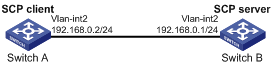
Configuration procedure
1.Configure theSCPserver:
# Generate RSA key pairs.
[SwitchB] public-key local create rsa
The range of public key size is (512 ~ 2048).
If the key modulus is greater than 512, it will take a few minutes.
Press CTRL+C to abort.
Input the modulus length [default = 1024]:
Generating Keys...
........................++++++
...................++++++
..++++++++
............++++++++
Create the key pair successfully.
# GenerateaDSA key pair.
[SwitchB] public-key local create dsa
The range of public key size is (512 ~ 2048).
If the key modulus is greater than 512, it will take a few minutes.
Press CTRL+C to abort.
Input the modulus length [default = 1024]:
Generating Keys...
.++++++++++++++++++++++++++++++++++++++++++++++++++*
........+......+.....+......................................+
...+.................+..........+...+.
Create the key pair successfully.
# Generate an ECDSA key pair.
[SwitchB] public-key local create ecdsa secp256r1
Generating Keys...
.
Create the key pair successfully.
# Enable the SCP server.
[SwitchB] scp server enable
# Configure an IP address for VLAN-interface2. TheSCPclient usesthis address as the destination for SCP connection.
[SwitchB] interface vlan-interface 2
[SwitchB-Vlan-interface2] ip address 192.168.0.1 255.255.255.0
[SwitchB-Vlan-interface2] quit
# Createa localdevice managementusernamedclient001.
[SwitchB] local-user client001 class manage
# Specifythe plaintext password asaabbccand the service type assshfor the user.
[SwitchB-luser-manage-client001] password simple aabbcc
[SwitchB-luser-manage-client001] service-type ssh
#Assignthenetwork-adminuser role to the user.
[SwitchB-luser-manage-client001] authorization-attribute user-role network-admin
[SwitchB-luser-manage-client001] quit
#ConfigureanSSH usernamedclient001. Specify theservice typeasscpandtheauthentication methodaspasswordfor the user.
[SwitchB] ssh user client001 service-type scp authentication-type password
2.Configure an IP address for VLAN-interface2 on the SCP client.
[SwitchA] interface vlan-interface 2
[SwitchA-Vlan-interface2] ip address 192.168.0.2 255.255.255.0
[SwitchA-Vlan-interface2] quit
[SwitchA] quit
3.Connect to the SCP server, download the fileremote.binfrom the server, and saveitlocally with the namelocal.bin.
Username: client001
Press CTRL+C to abort.
Connecting to 192.168.0.1 port 22.
The server is not authenticated. Continue? [Y/N]:y
Do you want to save the server public key? [Y/N]:n
client001@192.168.0.1’s password:
remote.bin 100% 2875 2.8KB/s 00:00
SCP configuration example based on Suite B algorithms
Network requirements
As shown inFigure 18:
·Switch A acts as an SCP client (SSH2).
·Switch B acts as the SCP server (SSH2), and it uses publickey authentication.
·Switch B uses the following algorithms for the algorithm negotiation with the SCP client:
¡Key exchange algorithmsecdh-sha2-nistp256andecdh-sha2-nistp384.
¡Encryption algorithmsaes128-gcmandaes256-gcm.
¡Public key algorithmsx509v3-ecdsa-sha2-nistp256andx509v3-ecdsa-sha2-nistp384.
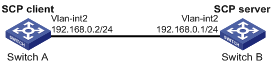
Configuration procedure
1.Generate the client's certificates and the server's certificates. (Details not shown.)
You must first configure the certificates of the server and the client because they are required for identity authentication between the two parties.
In this example, the server's certificate files aressh-server-ecdsa256.p12andssh-server-ecdsa384.p12. The client's certificate files aressh-client-ecdsa256.p12andssh-client-ecdsa384.p12.
2.Configure the SCP client:
NOTE: You can modify the pkix version of the client software OpenSSH to support Suite B. This example uses an H3C switch as an SCP client. |
# Upload the server's certificate files (ssh-server-ecdsa256.p12andssh-server-ecdsa384.p12) and the client's certificate files (ssh-client-ecdsa256.p12andssh-client-ecdsa384.p12) to the SCP client through FTP or TFTP. (Details not shown.)
#Create a PKI domain namedserver256for verifying the server's certificateecdsa256and enter its view.
[SwitchA] pki domain server256
# Disable CRL checking.
[SwitchA-pki-domain-server256] undo crl check enable
[SwitchA-pki-domain-server256] quit
# Import the local certificate filessh-server-ecdsa256.p12to the PKI domainserver256.
[SwitchA] pki import domain server256 p12 local filename ssh-server-ecdsa256.p12
The system is going to save the key pair. You must specify a key pair name, which is a case-insensitive string of 1 to 64 characters. Valid characters include a to z, A to Z, 0 to 9, and hyphens (-).
Please enter the key pair name[default name: server256]:
# Display information about local certificates in the PKI domainserver256.
[SwitchA] display pki certificate domain server256 local
Certificate:
Data:
Version: 3 (0x2)
Serial Number: 3 (0x3)
Signature Algorithm: ecdsa-with-SHA256
Issuer: C=CN, ST=Beijing, L=Beijing, O=H3C, OU=Software, CN=SuiteB CA
Validity
Not Before: Aug 21 08:39:51 2015 GMT
Not After : Aug 20 08:39:51 2016 GMT
Subject: C=CN, ST=Beijing, O=H3C, OU=Software, CN=SSH Server secp256
Subject Public Key Info:
Public Key Algorithm: id-ecPublicKey
Public-Key: (256 bit)
pub:
04:a2:b4:b4:66:1e:3b:d5:50:50:0e:55:19:8d:52:
6d:47:8c:3d:3d:96:75:88:2f:9a:ba:a2:a7:f9:ef:
0a:a9:20:b7:b6:6a:90:0e:f8:c6:de:15:a2:23:81:
3c:9e:a2:b7:83:87:b9:ad:28:c8:2a:5e:58:11:8e:
c7:61:4a:52:51
ASN1 OID: prime256v1
NIST CURVE: P-256
X509v3 extensions:
X509v3 Basic Constraints:
CA:FALSE
Netscape Comment:
OpenSSL Generated Certificate
X509v3 Subject Key Identifier:
08:C1:F1:AA:97:45:19:6A:DA:4A:F2:87:A1:1A:E8:30:BD:31:30:D7
X509v3 Authority Key Identifier:
keyid:5A:BE:85:49:16:E5:EB:33:80:25:EB:D8:91:50:B4:E6:3E:4F:B8:22
Signature Algorithm: ecdsa-with-SHA256
30:65:02:31:00:a9:16:e9:c1:76:f0:32:fc:4b:f9:8f:b6:7f:
31:a0:9f:de:a7:cc:33:29:27:2c:71:2e:f9:0d:74:cb:25:c9:
00:d2:52:18:7f:58:3f:cc:7e:8b:d3:42:65:00:cb:63:f8:02:
30:01:a2:f6:a1:51:04:1c:61:78:f6:6b:7e:f9:f9:42:8d:7c:
a7:bb:47:7c:2a:85:67:0d:81:12:0b:02:98:bc:06:1f:c1:3c:
9b:c2:1b:4c:44:38:5a:14:b2:48:63:02:2b
#Create a PKI domain namedclient256for the client's certificateecdsa256and enter its view.
[SwitchA] pki domain client256
# Disable CRL checking.
[SwitchA-pki-domain-client256] undo crl check enable
[SwitchA-pki-domain-client256] quit
# Import the local certificate filessh-client-ecdsa256.p12to the PKI domainclient256.
[SwitchA] pki import domain client256 p12 local filename ssh-client-ecdsa256.p12
The system is going to save the key pair. You must specify a key pair name, which is a case-insensitive string of 1 to 64 characters. Valid characters include a to z, A to Z, 0 to 9, and hyphens (-).
Please enter the key pair name[default name: client256]:
# Display information about local certificates in the PKI domainclient256.
[SwitchA] display pki certificate domain client256 local
Certificate:
Data:
Version: 3 (0x2)
Serial Number: 4 (0x4)
Signature Algorithm: ecdsa-with-SHA256
Issuer: C=CN, ST=Beijing, L=Beijing, O=H3C, OU=Software, CN=SuiteB CA
Validity
Not Before: Aug 21 08:41:09 2015 GMT
Not After : Aug 20 08:41:09 2016 GMT
Subject: C=CN, ST=Beijing, O=H3C, OU=Software, CN=SSH Client secp256
Subject Public Key Info:
Public Key Algorithm: id-ecPublicKey
Public-Key: (256 bit)
pub:
04:da:e2:26:45:87:7a:63:20:e7:ca:7f:82:19:f5:
96:88:3e:25:46:f8:2f:9a:4c:70:61:35:db:e4:39:
b8:38:c4:60:4a:65:28:49:14:32:3c:cc:6d:cd:34:
29:83:84:74:a7:2d:0e:75:1c:c2:52:58:1e:22:16:
12:d0:b4:8a:92
ASN1 OID: prime256v1
NIST CURVE: P-256
X509v3 extensions:
X509v3 Basic Constraints:
CA:FALSE
Netscape Comment:
OpenSSL Generated Certificate
X509v3 Subject Key Identifier:
1A:61:60:4D:76:40:B8:BA:5D:A1:3C:60:BC:57:98:35:20:79:80:FC
X509v3 Authority Key Identifier:
keyid:5A:BE:85:49:16:E5:EB:33:80:25:EB:D8:91:50:B4:E6:3E:4F:B8:22
Signature Algorithm: ecdsa-with-SHA256
30:66:02:31:00:9a:6d:fd:7d:ab:ae:54:9a:81:71:e6:bb:ad:
5a:2e:dc:1d:b3:8a:bf:ce:ee:71:4e:8f:d9:93:7f:a3:48:a1:
5c:17:cb:22:fa:8f:b3:e5:76:89:06:9f:96:47:dc:34:87:02:
31:00:e3:af:2a:8f:d6:8d:1f:3a:2b:ae:2f:97:b3:52:63:b6:
18:67:70:2c:93:2a:41:c0:e7:fa:93:20:09:4d:f4:bf:d0:11:
66:0f:48:56:01:1e:c3:be:37:4e:49:19:cf:c6
#Create a PKI domain namedserver384for verifying the server's certificateecdsa384and enter its view.
[SwitchA] pki domain server384
# Disable CRL checking.
[SwitchA-pki-domain-server384] undo crl check enable
[SwitchA-pki-domain-server384] quit
# Import the local certificate filessh-server-ecdsa384.p12to the PKI domainserver384.
[SwitchA] pki import domain server384 p12 local filename ssh-server-ecdsa384.p12
The system is going to save the key pair. You must specify a key pair name, which is a case-insensitive string of 1 to 64 characters. Valid characters include a to z, A to Z, 0 to 9, and hyphens (-).
Please enter the key pair name[default name: server384]:
# Display information about local certificates in the PKI domainserver384.
[SwitchA] display pki certificate domain server384 local
Certificate:
Data:
Version: 3 (0x2)
Serial Number: 1 (0x1)
Signature Algorithm: ecdsa-with-SHA384
Issuer: C=CN, ST=Beijing, L=Beijing, O=H3C, OU=Software, CN=SuiteB CA
Validity
Not Before: Aug 20 10:08:41 2015 GMT
Not After : Aug 19 10:08:41 2016 GMT
Subject: C=CN, ST=Beijing, O=H3C, OU=Software, CN=ssh server
Subject Public Key Info:
Public Key Algorithm: id-ecPublicKey
Public-Key: (384 bit)
pub:
04:4a:33:e5:99:8d:49:45:a7:a3:24:7b:32:6a:ed:
b6:36:e1:4d:cc:8c:05:22:f4:3a:7c:5d:b7:be:d1:
e6:9e:f0:ce:95:39:ca:fd:a0:86:cd:54:ab:49:60:
10:be:67:9f:90:3a:18:e2:7d:d9:5f:72:27:09:e7:
bf:7e:64:0a:59:bb:b3:7d:ae:88:14:94:45:b9:34:
d2:f3:93:e1:ba:b4:50:15:eb:e5:45:24:31:10:c7:
07:01:f9:dc:a5:6f:81
ASN1 OID: secp384r1
NIST CURVE: P-384
X509v3 extensions:
X509v3 Basic Constraints:
CA:FALSE
Netscape Comment:
OpenSSL Generated Certificate
X509v3 Subject Key Identifier:
10:16:64:2C:DA:C1:D1:29:CD:C0:74:40:A9:70:BD:62:8A:BB:F4:D5
X509v3 Authority Key Identifier:
keyid:5A:BE:85:49:16:E5:EB:33:80:25:EB:D8:91:50:B4:E6:3E:4F:B8:22
Signature Algorithm: ecdsa-with-SHA384
30:65:02:31:00:80:50:7a:4f:c5:cd:6a:c3:57:13:7f:e9:da:
c1:72:7f:45:30:17:c2:a7:d3:ec:73:3d:5f:4d:e3:96:f6:a3:
33:fb:e4:b9:ff:47:f1:af:9d:e3:03:d2:24:53:40:09:5b:02:
30:45:d1:bf:51:fd:da:22:11:90:03:f9:d4:05:ec:d6:7c:41:
fc:9d:a1:fd:5b:8c:73:f8:b6:4c:c3:41:f7:c6:7f:2f:05:2d:
37:f8:52:52:26:99:28:97:ac:6e:f9:c7:01
#Create a PKI domain namedclient384for the client's certificateecdsa384and enter its view.
[SwitchA] pki domain client384
# Disable CRL checking.
[SwitchA-pki-domain-client384] undo crl check enable
[SwitchA-pki-domain-client384] quit
# Import the local certificate filessh-client-ecdsa384.p12to the PKI domainclient384.
[SwitchA] pki import domain client384 p12 local filename ssh-client-ecdsa384.p12
The system is going to save the key pair. You must specify a key pair name, which is a case-insensitive string of 1 to 64 characters. Valid characters include a to z, A to Z, 0 to 9, and hyphens (-).
Please enter the key pair name[default name: client384]:
# Display information about local certificates in the PKI domainclient384.
[SwitchA] display pki certificate domain client384 local
Certificate:
Data:
Version: 3 (0x2)
Serial Number: 2 (0x2)
Signature Algorithm: ecdsa-with-SHA384
Issuer: C=CN, ST=Beijing, L=Beijing, O=H3C, OU=Software, CN=SuiteB CA
Validity
Not Before: Aug 20 10:10:59 2015 GMT
Not After : Aug 19 10:10:59 2016 GMT
Subject: C=CN, ST=Beijing, O=H3C, OU=Software, CN=ssh client
Subject Public Key Info:
Public Key Algorithm: id-ecPublicKey
Public-Key: (384 bit)
pub:
04:85:7c:8b:f4:7a:36:bf:74:f6:7c:72:f9:08:69:
d0:b9:ac:89:98:17:c9:fc:89:94:43:da:9a:a6:89:
41:d3:72:24:9b:9a:29:a8:d1:ba:b4:e5:77:ba:fc:
df:ae:c6:dd:46:72:ab:bc:d1:7f:18:7d:54:88:f6:
b4:06:54:7e:e7:4d:49:b4:07:dc:30:54:4b:b6:5b:
01:10:51:6b:0c:6d:a3:b1:4b:c9:d9:6c:d6:be:13:
91:70:31:2a:92:00:76
ASN1 OID: secp384r1
NIST CURVE: P-384
X509v3 extensions:
X509v3 Basic Constraints:
CA:FALSE
Netscape Comment:
OpenSSL Generated Certificate
X509v3 Subject Key Identifier:
BD:5F:8E:4F:7B:FE:74:03:5A:D1:94:DB:CA:A7:82:D6:F7:78:A1:B0
X509v3 Authority Key Identifier:
keyid:5A:BE:85:49:16:E5:EB:33:80:25:EB:D8:91:50:B4:E6:3E:4F:B8:22
Signature Algorithm: ecdsa-with-SHA384
30:66:02:31:00:d2:06:fa:2c:0b:0d:f0:81:90:01:c3:3d:bf:
97:b3:79:d8:25:a0:e2:0e:ed:00:c9:48:3e:c9:71:43:c9:b4:
2a:a6:0a:27:80:9e:d4:0f:f2:db:db:5b:40:b1:a9:0a:e4:02:
31:00:ee:00:e1:07:c0:2f:12:3f:88:ea:fe:19:05:ef:56:ca:
33:71:75:5e:11:c9:a6:51:4b:3e:7c:eb:2a:4d:87:2b:71:7c:
30:64:fe:14:ce:06:d5:0a:e2:cf:9a:69:19:ff
# Assign an IP address to VLAN-interface 2.
[SwitchA] interface vlan-interface 2
[SwitchA-Vlan-interface2] ip address 192.168.0.2 255.255.255.0
[SwitchA-Vlan-interface2] quit
3.Configure the SCP server:
# Upload the server's certificate files (ssh-server-ecdsa256.p12andssh-server-ecdsa384.p12) and the client's certificate files (ssh-client-ecdsa256.p12andssh-client-ecdsa384.p12) to the SCP server through FTP or TFTP. (Details not shown.)
#Create a PKI domain namedclient256for verifying the client's certificateecdsa256and import the file of this certificate to this domain.Create a PKI domain namedserver256for the server's certificateecdsa256and import the file of this certificate to this domain. (Details not shown.)
#Create a PKI domain namedclient384for verifying the client's certificateecdsa384and import the file of this certificate to this domain.Create a PKI domain namedserver384for the server's certificateecdsa384and import the file of this certificate to this domain. (Details not shown.)
# Specify Suite B algorithms for algorithm negotiation.
[SwitchB] ssh2 algorithm key-exchange ecdh-sha2-nistp256 ecdh-sha2-nistp384
[SwitchB] ssh2 algorithm cipher aes128-gcm aes256-gcm
[SwitchB] ssh2 algorithm public-key x509v3-ecdsa-sha2-nistp256 x509v3-ecdsa-sha2-nistp384
# Enable the SCP server.
[SwitchB] scp server enable
# Assign an IP address to VLAN-interface 2.
[SwitchB] interface vlan-interface 2
[SwitchB-Vlan-interface2] ip address 192.168.0.1 255.255.255.0
[SwitchB-Vlan-interface2] quit
# Set the authentication mode to AAA for user lines.
[SwitchB] line vty 0 63
[SwitchB-line-vty0-63] authentication-mode scheme
[SwitchB-line-vty0-63] quit
# Create a local device management usernamedclient001. Authorize the user to use theSSHservice and assign thenetwork-adminuser role to the user.
[SwitchB] local-user client001 class manage
[SwitchB-luser-manage-client001] service-type ssh
[SwitchB-luser-manage-client001] authorization-attribute user-role network-admin
[SwitchB-luser-manage-client001] quit
# Create a local device management usernamedclient002. Authorize the user to use theSSHservice and assign thenetwork-adminuser role to the user.
[SwitchB] local-user client002 class manage
[SwitchB-luser-manage-client002] service-type ssh
[SwitchB-luser-manage-client002] authorization-attribute user-role network-admin
[SwitchB-luser-manage-client002] quit
4.Establish an SCP connection to SCP server192.168.0.1:
¡Based on the 128-bit Suite B algorithms:
# Specifyserver256as the PKI domain of the server's certificate.
[SwitchB]ssh server pki-domain server256
# Create an SSH usernamedclient001. Specify the authentication methodpublickeyfor the user and specifyclient256as the PKI domain for verifying the client's certificate.
[Switch] ssh user client001 service-type scp authentication-type publickey assign pki-domain client256
# Establish an SCP connection to SCP server192.168.0.1based on the 128-bit Suite B algorithms.
-domain server256
Username: client001
Press CTRL+C to abort.
Connecting to 192.168.0.1 port 22.
src.cfg 100% 4814 4.7KB/s 00:00
¡Based on the 192-bit Suite B algorithms:
# Specifyserver384as the PKI domain of the server's certificate.
[SwitchB] ssh server pki-domain server384
# Create an SSH usernamedclient002. Specify the authentication methodpublickeyfor the user and specifyclient384as the PKI domain for verifying the client's certificate.
[Switch] ssh user client002 service-type scp authentication-type publickey assign pki-domain client384
# Establish an SCP connection to SCP server192.168.0.1based on the 192-bit Suite B algorithms.
-domain server384
Username: client002
Press CTRL+C to abort.
Connecting to 192.168.0.1 port 22.
src.cfg 100% 4814 4.7KB/s 00:00
NETCONF over SSH configuration example with password authentication
Unless otherwise noted, the switch in the configuration example is in non-FIPS mode.
When you configure NETCONF-over-SSH on a device that operates in FIPS mode, follow theserestrictions andguidelines:
·The modulus length of the key pair must be 2048 bits.
·When the device acts as a NETCONF-over-SSH server, only ECDSA and RSA key pairsare supported.If bothECDSA and RSAkey pairs exist on the server, the server uses the ECDSA key pair.
Network requirements
As shown inFigure 19:
·The switch uses local password authentication.
·The client's username and password are saved on the switch.
Establish a NETCONF-over-SSH connection between the host and the switch, so that you can log in to the switch to perform NETCONF operations.
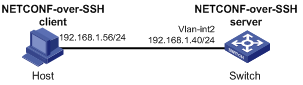
Configuration procedure
# Generate RSA key pairs.
[Switch] public-key local create rsa
The range of public key size is (512 ~ 2048).
If the key modulus is greater than 512, it will take a few minutes.
Press CTRL+C to abort.
Input the modulus length [default = 1024]:
Generating Keys...
........................++++++
...................++++++
..++++++++
............++++++++
Create the key pair successfully.
# Generate a DSA key pair.
[Switch] public-key local create dsa
The range of public key size is (512 ~ 2048).
If the key modulus is greater than 512, it will take a few minutes.
Press CTRL+C to abort.
Input the modulus length [default = 1024]:
Generating Keys...
.++++++++++++++++++++++++++++++++++++++++++++++++++*
........+......+.....+......................................+
...+.................+..........+...+.
Create the key pair successfully.
# Generate an ECDSA key pair.
[Switch] public-key local create ecdsa secp256r1
Generating Keys...
.
Create the key pair successfully.
# Enable NETCONF over SSH.
[Switch] netconf ssh server enable
# Configure an IP address for VLAN-interface 2. The client uses this address as the destination for NETCONF-over-SSH connection.
[Switch] interface vlan-interface 2
[Switch-Vlan-interface2] ip address 192.168.1.40 255.255.255.0
[Switch-Vlan-interface2] quit
# Set the authentication mode to AAA for the user lines.
[Switch-line-vty0-63] authentication-mode scheme
[Switch-line-vty0-63] quit
# Create a local device management user namedclient001.
[Switch] local-user client001 class manage
# Specifythe plaintext password asaabbccand the service type assshfor the user.
[Switch-luser-manage-client001] password simple aabbcc
[Switch-luser-manage-client001] service-type ssh
# Assign thenetwork-adminuser role to the user.
[Switch-luser-manage-client001] authorization-attribute user-role network-admin
[Switch-luser-manage-client001] quit
# Create an SSH user namedclient001. Specify the service type asNETCONFand the authentication method aspasswordfor the user.
[Switch] ssh user client001 service-type netconf authentication-type password
Verifying the configuration
# Verify that you can perform NETCONF operations after logging in to the switch. (Details not shown.)
